
Taming MacBook Pro Sleep with pmset Power Management
Since I got my M1 MacBook, the battery keeps draining even when I barely touch it—left idle, it’s dead in about a week. Last night I charged it to 100% and checked: with the lid closed overnight, it still lost 10%.
TL;DR: Run
sudo pmset -b powernap 0to turn off Power Nap; with the lid closed overnight, battery drop was under 1%.
The Disappearing Power Nap
In the Battery settings on MacBook (“Energy Saver” on desktops), there used to be two toggles:
- Wake for network access
- Enable Power Nap
You can find their exact meanings in the official support docs. In short:
-
Wake for network access: allow the computer to wake when it is being accessed in order to provide services, such as sharing printers or files. It will also wake periodically to broadcast file change notifications (if file sharing is enabled). Note: this option does not mean “wake so local apps can access the network to update themselves.”
-
Power Nap: allow the Mac to wake from sleep to update its own data, such as Mail, iCloud sync, and Time Machine.
So the roles of these two options are actually pretty clear. In macOS 12’s System Preferences, only Power Nap was explained, but at least that part was straightforward. Starting with macOS 13, Apple added an explanation for “Wake for network access” whose wording is highly confusing, and on M1 devices the Power Nap toggle is no longer shown at all.
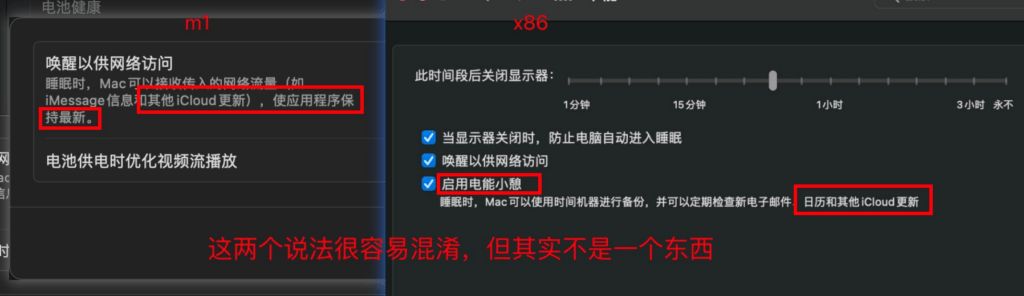
From the screenshot above, you can see that in macOS 13 the description of “Wake for network access” looks very similar to Power Nap, creating the illusion that the two options have been merged. Following that logic, you might think: turn off Wake for network access and there will be no more background updates. In reality, regardless of the “Wake for network access” setting, Power Nap is always on and the system keeps doing background updates while sleeping—that’s the real cause of the high sleep drain.
It feels a bit sneaky: Apple is so confident in ARM power efficiency that they just assume it’s fine to keep background updates enabled by default. To avoid user complaints, they tweak the wording of another option to make you think you’ve disabled it. There are plenty of posts online complaining about M1 standby drain, but many analyses never get to the root cause.
pmset Power Management
pmset (Power Management Set) is a command-line power management utility on macOS. The corresponding options in System Settings are effectively frontends to pmset, but pmset exposes much more granular configuration.
How did I determine that “Wake for network access” and “Power Nap” haven’t been merged? In
pmset, “Wake for network access” is controlled viawomp, while Power Nap corresponds topowernap.
Note that different devices support different parameters. Many settings—such as standbydelaylow/high—are no-ops on M1 machines. Apparently Apple’s confidence in power efficiency led them to remove some of these fine‑grained power‑saving knobs.
Inspecting Configuration
Important terminology:
- Sleep: keep RAM powered
- Standby: write RAM contents to disk and power RAM off
- Hibernate: “sleep mode” in the generic sense; the actual behavior (sleep vs. standby) depends on configuration
View the currently effective configuration:
View user configuration:
Some processes may prevent standby; these will show up in the current effective settings, so they may differ from the user configuration.
Here’s a reference table:
| Property | Unit | Notes | System Settings (macOS 13) |
|---|---|---|---|
| standby/autopoweroff* | 0/1 | Allow switching from sleep to standby | |
| powernap | 0/1 | Power Nap | Battery → Options → Enable Power Nap |
| networkoversleep | 0/1 | How to handle shared networking during sleep. Not user‑configurable | |
| disksleep | minutes | Time before spinning down disks; 0 disables | |
| sleep* | minutes | Time before entering sleep; 0 disables sleep | |
| hibernatemode* | 0/3/25 | Standby mode. 0: sleep, 25: standby, 3: sleep then standby | |
| ttyskeepawake | 0/1 | Don’t sleep when there is an active TTY (terminal session) | |
| displaysleep | minutes | Time before turning off display | Lock Screen → Turn display off on power adapter when inactive |
| tcpkeepalive* | 0/1 | Allow TCP connections | |
| lowpowermode | 0/1 | Low Power Mode | Battery → Low Power Mode |
| womp | 0/1 | Wake on network access | Battery → Options → Wake for network access |
| gpuswitch | 0/1/2 | 0: integrated GPU, 1: discrete GPU, 2: automatic | |
| standbydelayhigh/low* | seconds | Delay before switching from sleep to standby | |
| highstandbythreshold | 0–100 | If battery is above this level, standbydelayhigh applies; otherwise low applies | |
| proximitywake | 0/1 | Wake when a device using the same account is nearby |
If
pmset -g customoutput is missing some properties, your device simply doesn’t support them.
You can’t just go by the literal meaning of these properties—many work in combination. A few important notes:
-
sleep: Even if the sleep timer has expired, the Mac may not actually sleep. For example, an active display can block sleep. All conditions must be satisfied before sleep occurs. On M1 MacBooks running on battery, the default
sleep=1, which effectively means the display sleep timer (displaysleep) controls when the machine sleeps. -
hibernatemode: Whether RAM is actually written to disk also depends on
standbyandautopoweroff.- 0: pure sleep. RAM is not persisted; if power is lost, unsaved data is gone.
- 25: pure standby. Each time you sleep, RAM is written to disk and RAM power is shut off. On wake, RAM is restored from disk. Wake is obviously slower.
- 3: hybrid mode—sleep first, then transition to standby.
-
tcpkeepalive: Disabling this in the CLI triggers a warning because it affects core system features such as Find My Mac. In practice, its impact on battery is small; disabling
powernapalone is usually enough. -
standby/autopoweroff: These appear to behave the same, but originated in different contexts.
standbywas added to extend MacBook battery life;autopoweroffwas added so desktops could meet EU energy regulations, so MacBooks don’t expose it.
Changing Settings
Run
sudo pmset restoredefaultsto reset to defaults.
You need sudo privileges to change settings.
The general syntax is:
pmset [-a | -b | -c | -u] [setting value] [...]-a: apply to all power profiles-b: apply on battery power-c: apply when connected to power adapter-u: apply when on UPS power
If
pmset -g customoutput doesn’t list a certain profile, your device doesn’t support it.
Some useful examples:
- Disable Power Nap on battery (recommended):
sudo pmset -b powernap 0 - Disable TCP connections on battery (may break some system features):
sudo pmset -b tcpkeepalive 0 - Force full standby on battery (persist RAM to disk and power RAM off):
sudo pmset -b hibernatemode 25
Analyzing Wakes
View the number of sleep/wake events since boot:
The output fields:
| Field | Description | |
|---|---|---|
| Sleep Count | Number of sleep events | |
| Dark Wake Count | Number of background wakes (no display) | |
| User Wake Count | Number of user‑visible wakes (screen on, usually user‑initiated) |
View detailed background wake logs:
pmset -g log | grep -e "Wake from" -e "DarkWake" -e "due to"The output can be hard to read.
AOP.OutboxNotEmpty spu_queue_overflow_ep42: occurring every 1–2 hours is normal
View sleep assertions:
Sometimes the system or apps prevent sleep; these runtime locks are called assertions. They are reflected in the live power settings (pmset -g) and can also be listed explicitly. Example output:
Assertion status system-wide: BackgroundTask 0 ApplePushServiceTask 0 UserIsActive 1 PreventUserIdleDisplaySleep 0 PreventSystemSleep 0 ExternalMedia 0 PreventUserIdleSystemSleep 1 NetworkClientActive 0Listed by owning process: ........The numbers represent whether each type of lock is active, not how many locks of that type exist. Below that, you’ll see which process owns each assertion and whether it has a timeout. Typically UserIsActive and PreventUserIdleSystemSleep are both active:
- UserIsActive: a system process tracking user activity, with a 120‑second timeout
- PreventUserIdleSystemSleep: a system process holding this lock while the screen is on; it’s released automatically once the display sleeps.