
Mounting OneDrive for Business with Rclone for Backups
These two days I subscribed to the OneDrive Plan 2 as a backup solution, so I’m taking the opportunity to document how to connect the business edition.
Preface
When using Rclone to transfer files to OneDrive, you may run into issues like very slow speeds or frequent disconnects. The root cause is usually OneDrive API throttling. Since Rclone’s built‑in API is shared by a huge number of users, these limitations become even more obvious. As my usage is relatively large‑scale, I decided to use a self‑hosted private API to connect to OneDrive for storage.
Installing Rclone
No need to go into too much detail here.
curl https://rclone.org/install.sh | bashIf you see output like the following, the installation was successful.
rclone v1.70.2 has successfully installed.Now run "rclone config" for setup. Check https://rclone.org/docs/ for more details.Creating a OneDrive API
Official docs: https://rclone.org/onedrive/

Getting the Client ID
Go to the Microsoft Azure App Registration page. If you have OneDrive for Business, you should already have an account, so I won’t elaborate further.
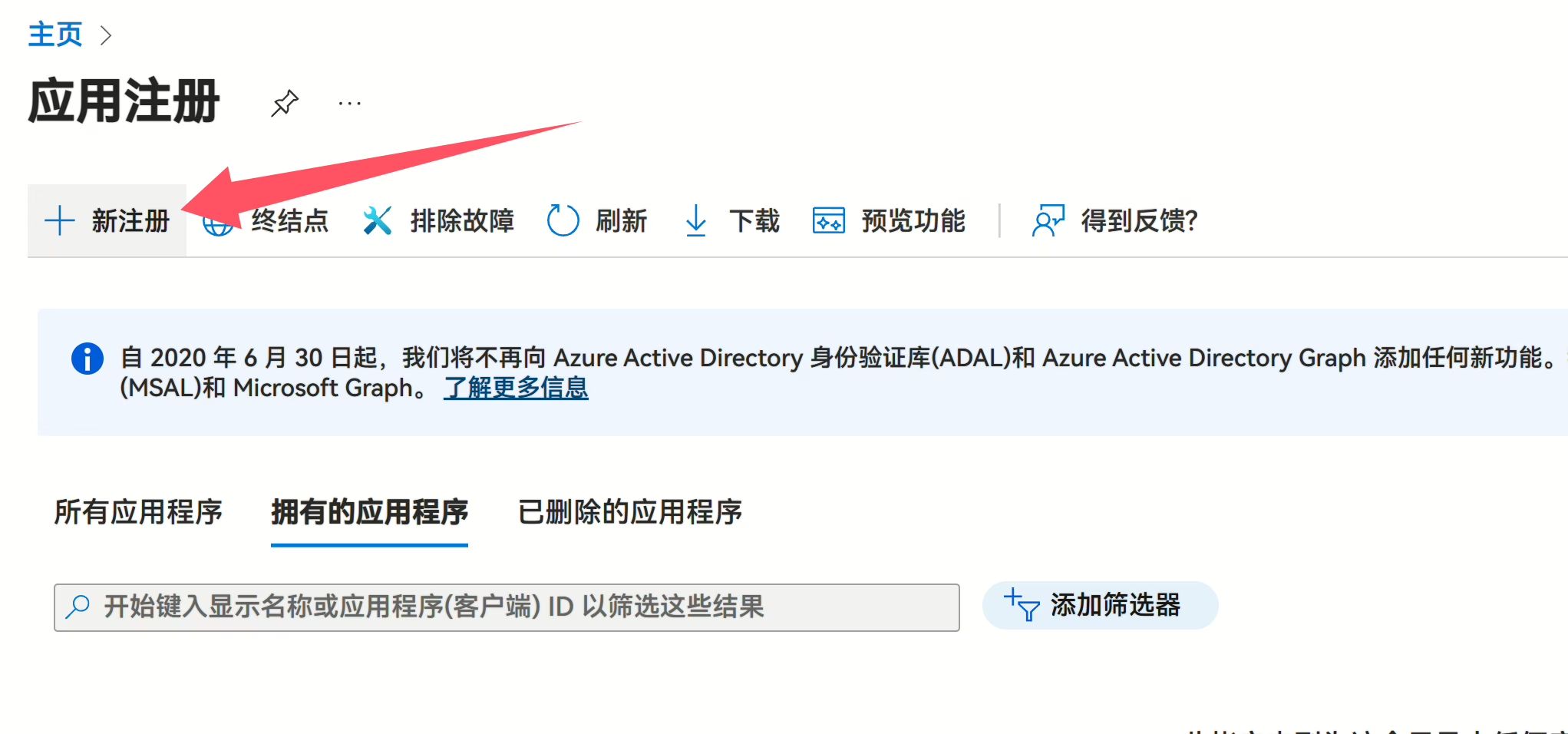
Click New registration.
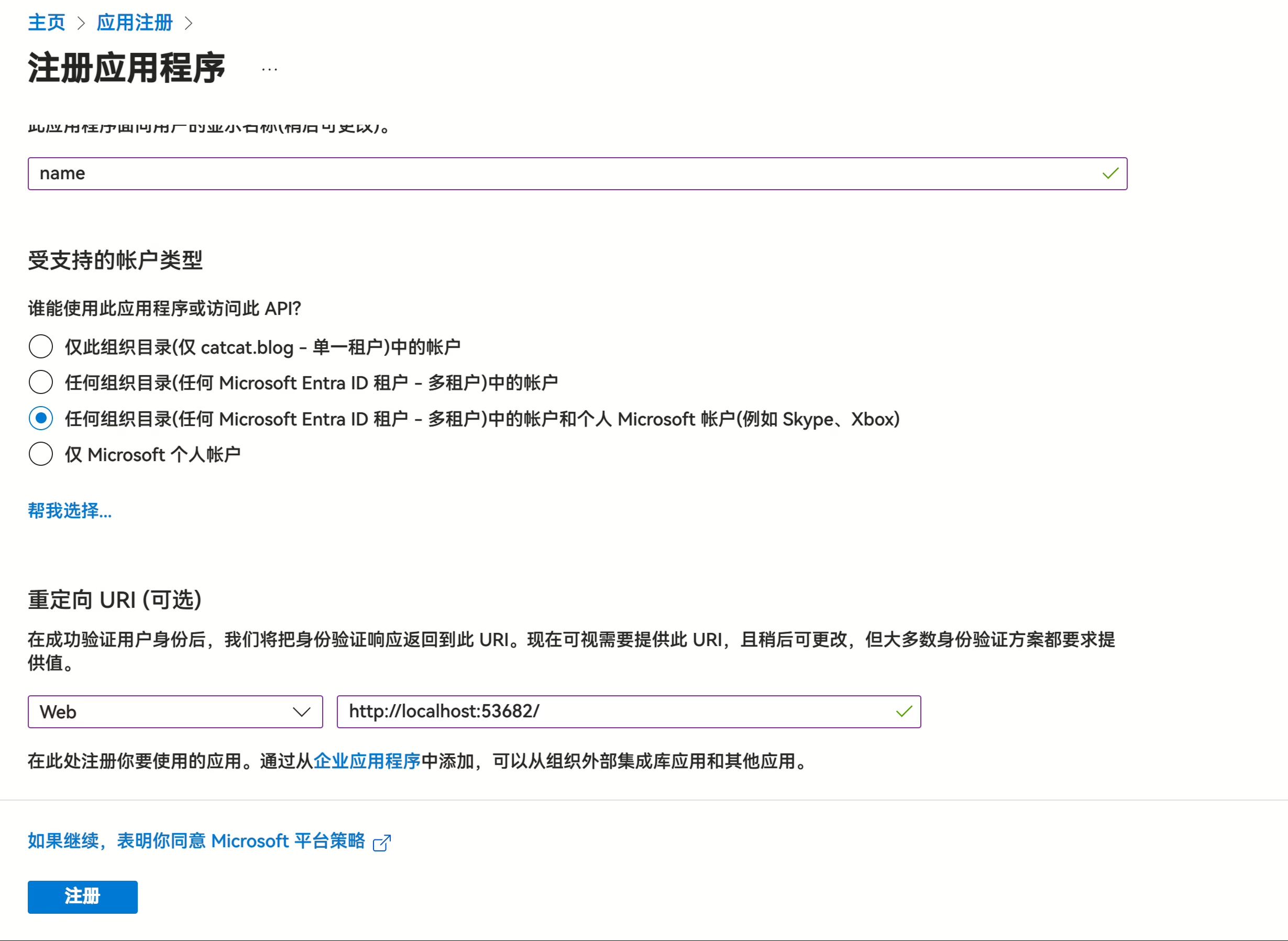
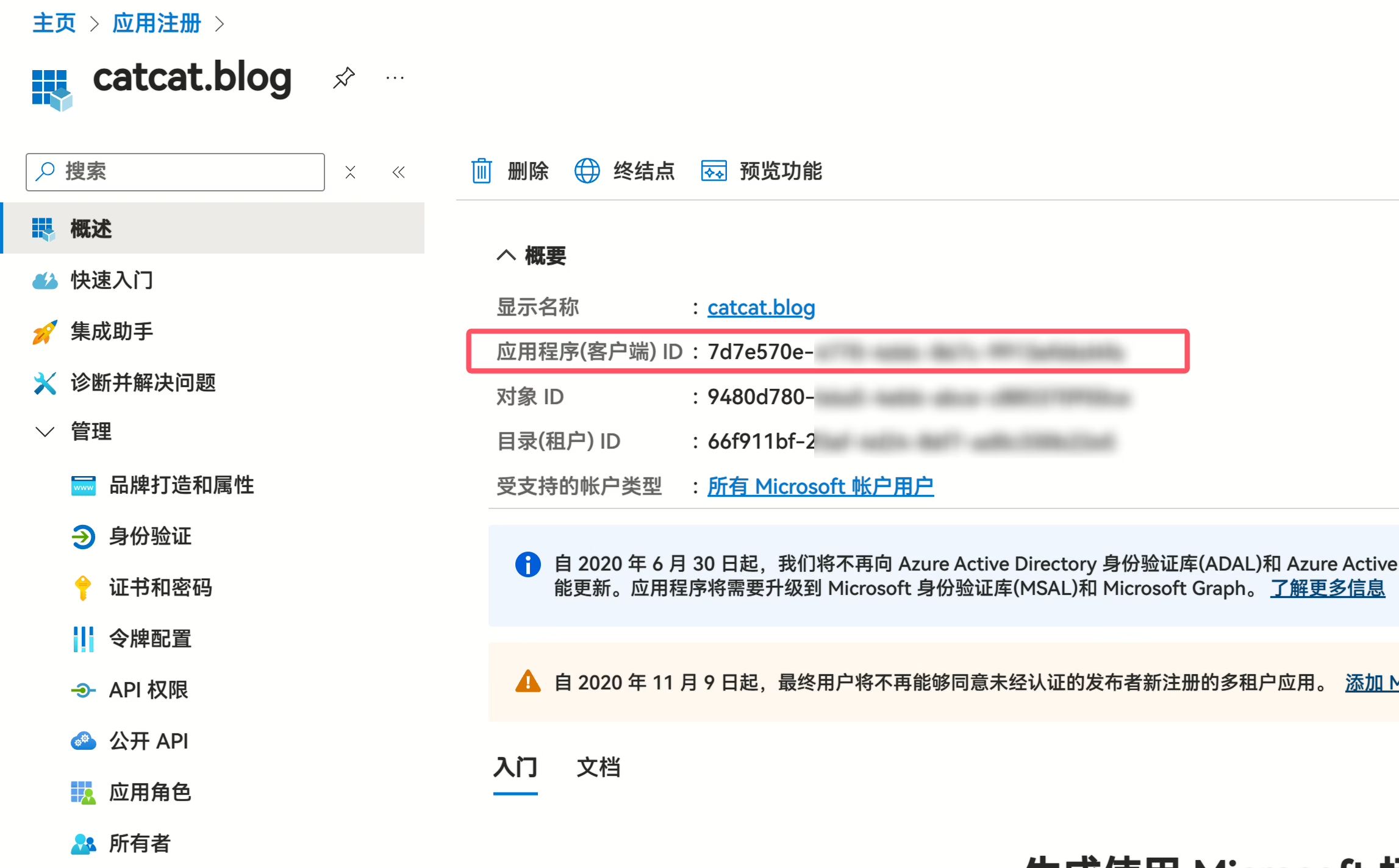
After the app is created, you will see the Client ID (Application/Client ID). Copy and save it. It’s the value highlighted in red in the screenshot.
Getting the Client Secret
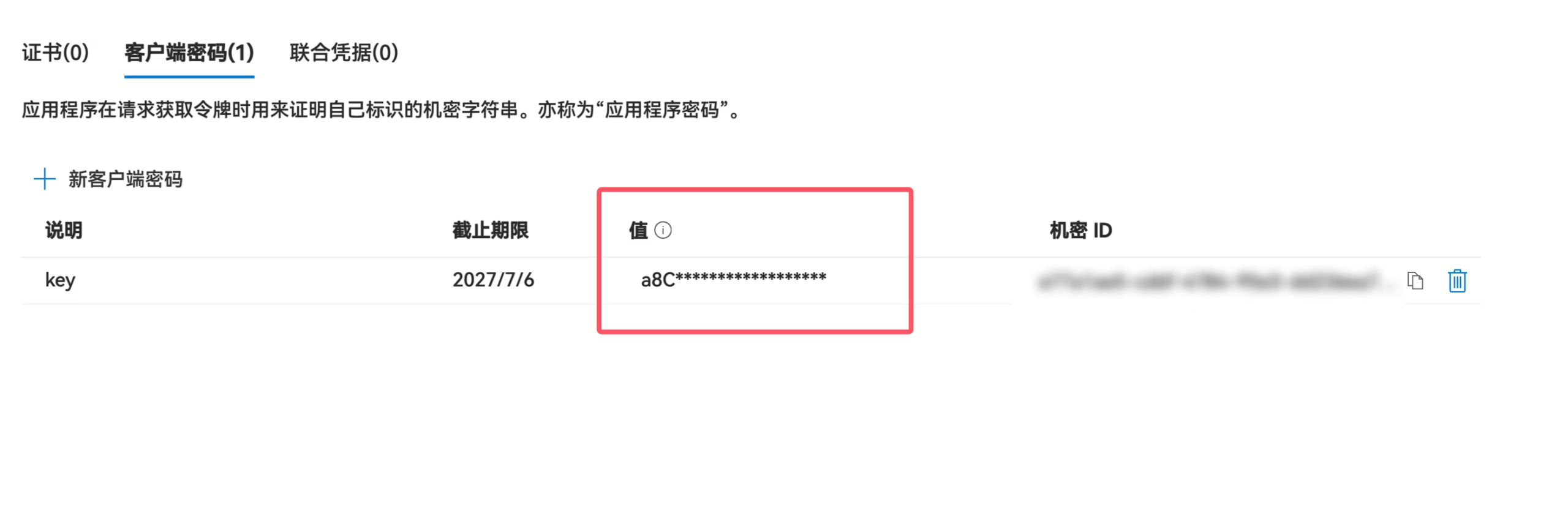
- Click Certificates & secrets.
It seems you can no longer create permanent keys; the maximum lifetime is 24 months.
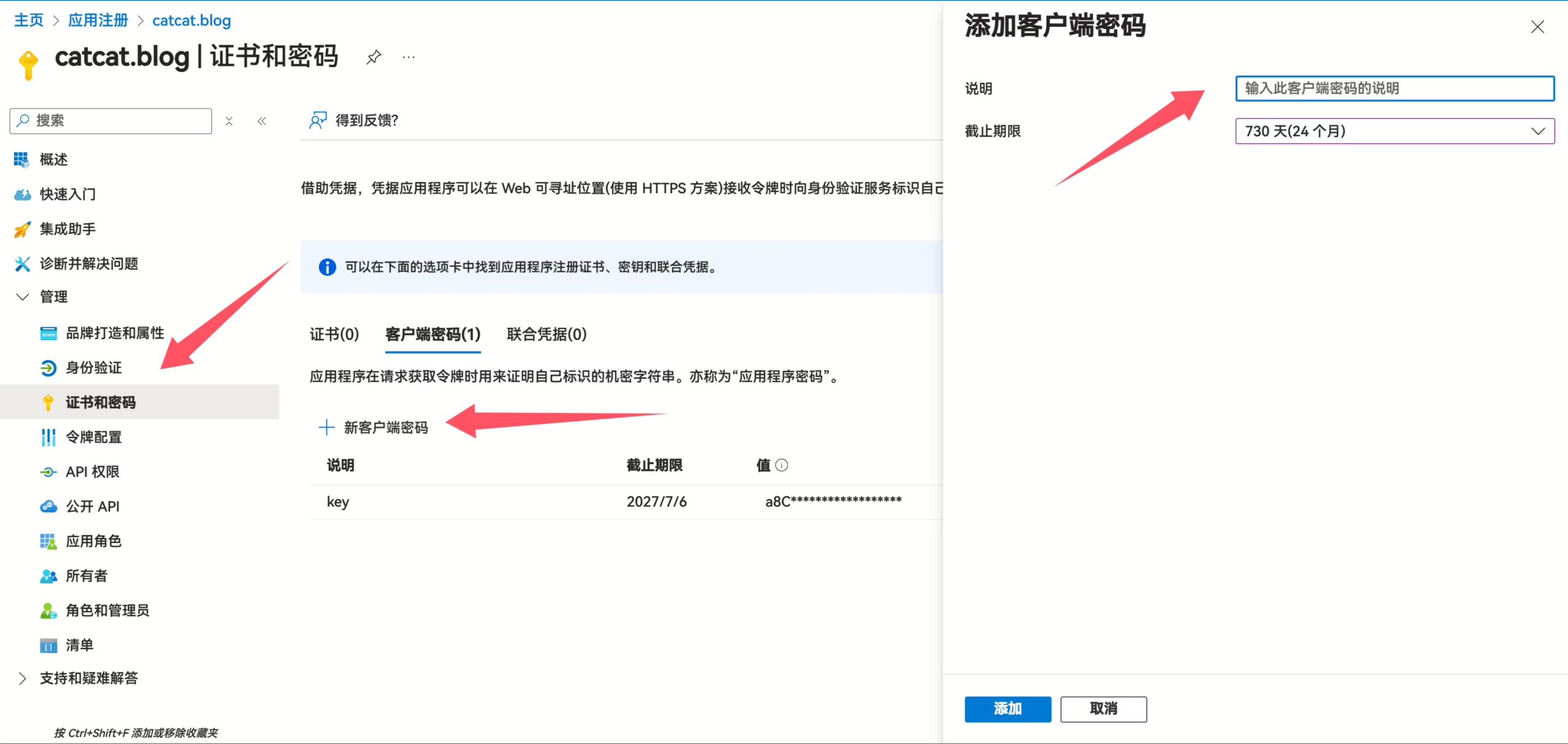
Then you’ll see the Client secret. Copy and save it.
It’s that value.
Configuring API Permissions
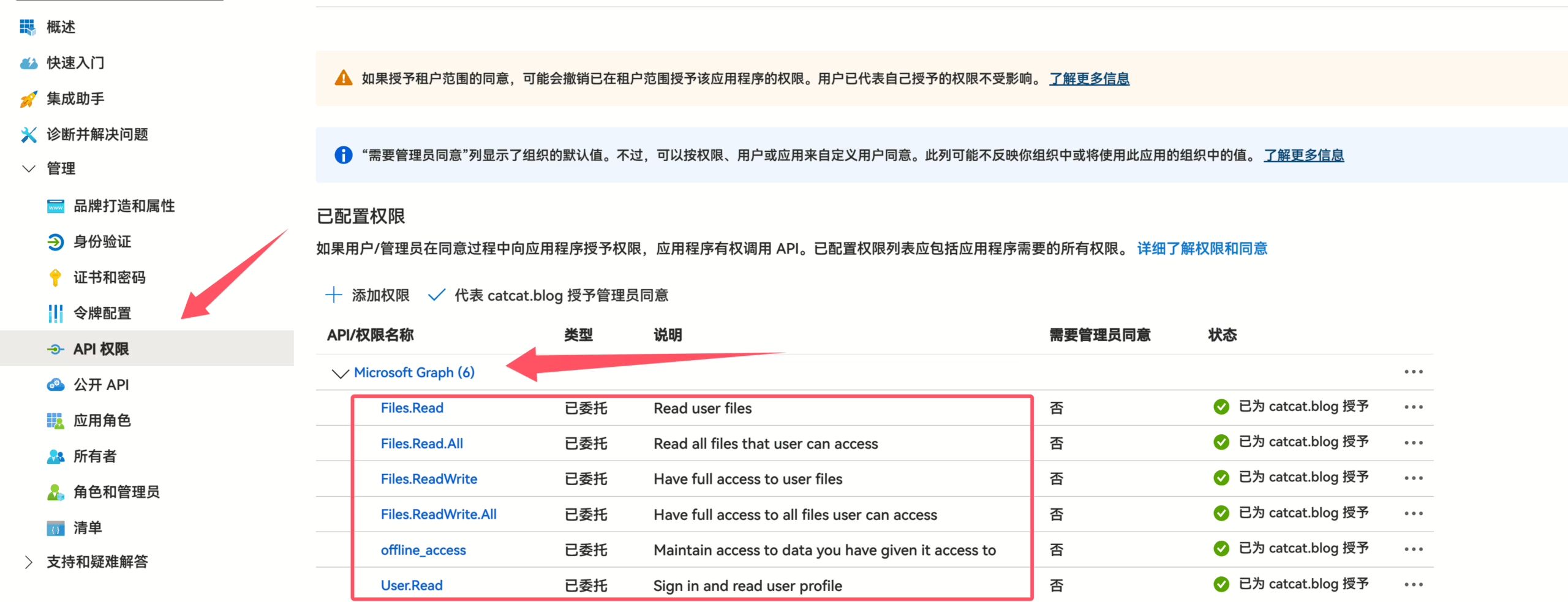
- Click API permissions and follow the screenshots to add the following permissions:
Files.Read,Files.ReadWrite,Files.Read.All,Files.ReadWrite.All,offline_access, andUser.Read. (Just search for them by name; it’s quick.)
Getting the Tenant ID
Go to the Azure Portal to obtain your Tenant ID (this is very important).

Getting the Remote Mount
This step is very similar to the personal edition, but there are a few differences.
You still need to do this on a machine that can open a browser, preferably the same one where you are already logged in to your Microsoft account.
For servers, I don’t recommend trying to obtain a token directly on the remote machine. I’ve tried and kept failing the verification. It’s better to configure and mount locally, then copy the finished config over to the server.
I like using Scoop as a package manager; it’s similar to manually downloading the executable.
scoop install rcloneRun:
rclone configThen follow the interactive prompts and choose according to your situation:
e) Edit existing remoten) New remoted) Delete remoter) Rename remotec) Copy remotes) Set configuration passwordq) Quit confige/n/d/r/c/s/q> n
Enter name for new remote.name> 名称
Option Storage.Type of storage to configure.Choose a number from below, or type in your own value. 1 / 1Fichier \ (fichier) 2 / Akamai NetStorage \ (netstorage) 3 / Alias for an existing remote \ (alias) 4 / Amazon S3 Compliant Storage Providers including AWS, Alibaba, ArvanCloud, Ceph, ChinaMobile, Cloudflare, DigitalOcean, Dreamhost, Exaba, FlashBlade, GCS, HuaweiOBS, IBMCOS, IDrive, IONOS, LyveCloud, Leviia, Liara, Linode, Magalu, Mega, Minio, Netease, Outscale, Petabox, RackCorp, Rclone, Scaleway, SeaweedFS, Selectel, StackPath, Storj, Synology, TencentCOS, Wasabi, Qiniu and others \ (s3) 5 / Backblaze B2 \ (b2) 6 / Better checksums for other remotes \ (hasher) 7 / Box \ (box) 8 / Cache a remote \ (cache) 9 / Citrix Sharefile \ (sharefile)10 / Cloudinary \ (cloudinary)11 / Combine several remotes into one \ (combine)12 / Compress a remote \ (compress)13 / DOI datasets \ (doi)14 / Dropbox \ (dropbox)15 / Encrypt/Decrypt a remote \ (crypt)16 / Enterprise File Fabric \ (filefabric)17 / FTP \ (ftp)18 / FileLu Cloud Storage \ (filelu)19 / Files.com \ (filescom)20 / Gofile \ (gofile)21 / Google Cloud Storage (this is not Google Drive) \ (google cloud storage)22 / Google Drive \ (drive)23 / Google Photos \ (google photos)24 / HTTP \ (http)25 / Hadoop distributed file system \ (hdfs)26 / HiDrive \ (hidrive)27 / ImageKit.io \ (imagekit)28 / In memory object storage system. \ (memory)29 / Internet Archive \ (internetarchive)30 / Jottacloud \ (jottacloud)31 / Koofr, Digi Storage and other Koofr-compatible storage providers \ (koofr)32 / Linkbox \ (linkbox)33 / Local Disk \ (local)34 / Mail.ru Cloud \ (mailru)35 / Mega \ (mega)36 / Microsoft Azure Blob Storage \ (azureblob)37 / Microsoft Azure Files \ (azurefiles)38 / Microsoft OneDrive \ (onedrive)39 / OpenDrive \ (opendrive)40 / OpenStack Swift (Rackspace Cloud Files, Blomp Cloud Storage, Memset Memstore, OVH) \ (swift)41 / Oracle Cloud Infrastructure Object Storage \ (oracleobjectstorage)42 / Pcloud \ (pcloud)43 / PikPak \ (pikpak)44 / Pixeldrain Filesystem \ (pixeldrain)45 / Proton Drive \ (protondrive)46 / Put.io \ (putio)47 / QingCloud Object Storage \ (qingstor)48 / Quatrix by Maytech \ (quatrix)49 / SMB / CIFS \ (smb)50 / SSH/SFTP \ (sftp)51 / Sia Decentralized Cloud \ (sia)52 / Storj Decentralized Cloud Storage \ (storj)53 / Sugarsync \ (sugarsync)54 / Transparently chunk/split large files \ (chunker)55 / Uloz.to \ (ulozto)56 / Union merges the contents of several upstream fs \ (union)57 / Uptobox \ (uptobox)58 / WebDAV \ (webdav)59 / Yandex Disk \ (yandex)60 / Zoho \ (zoho)61 / iCloud Drive \ (iclouddrive)62 / premiumize.me \ (premiumizeme)63 / seafile \ (seafile)Storage> 目前OneDrive的位置
Option client_id.OAuth Client Id.Leave blank normally.Enter a value. Press Enter to leave empty.client_id> ## 你的 ID
Option client_secret.OAuth Client Secret.Leave blank normally.Enter a value. Press Enter to leave empty.client_secret> ## 你的key
Option region.Choose national cloud region for OneDrive.Choose a number from below, or type in your own value of type string.Press Enter for the default (global). 1 / Microsoft Cloud Global \ (global) 2 / Microsoft Cloud for US Government \ (us) 3 / Microsoft Cloud Germany (deprecated - try global region first). \ (de) 4 / Azure and Office 365 operated by Vnet Group in China \ (cn)region> 1
Option tenant.ID of the service principal's tenant. Also called its directory ID.Set this if using- Client Credential flowEnter a value. Press Enter to leave empty.tenant> ## 你的租户id
Edit advanced config?y) Yesn) No (default)y/n> n
Use web browser to automatically authenticate rclone with remote? * Say Y if the machine running rclone has a web browser you can use * Say N if running rclone on a (remote) machine without web browser accessIf not sure try Y. If Y failed, try N.
y) Yes (default)n) Noy/n> y2025/07/06 16:57:15 NOTICE: Make sure your Redirect URL is set to "http://localhost:53682/" in your custom config.2025/07/06 16:57:15 NOTICE: If your browser doesn't open automatically go to the following link: http://127.0.0.1:53682/auth?state=Ehm83J5uuZG7m3PnnArFrw2025/07/06 16:57:15 NOTICE: Log in and authorize rclone for access2025/07/06 16:57:15 NOTICE: Waiting for code...2025/07/06 16:57:21 NOTICE: Got codeOption config_type.Type of connectionChoose a number from below, or type in an existing value of type string.Press Enter for the default (onedrive). 1 / OneDrive Personal or Business \ (onedrive) 2 / Root Sharepoint site \ (sharepoint) / Sharepoint site name or URL 3 | E.g. mysite or https://contoso.sharepoint.com/sites/mysite \ (url) 4 / Search for a Sharepoint site \ (search) 5 / Type in driveID (advanced) \ (driveid) 6 / Type in SiteID (advanced) \ (siteid) / Sharepoint server-relative path (advanced) 7 | E.g. /teams/hr \ (path)config_type>1Option config_driveid.Select drive you want to useChoose a number from below, or type in your own value of type string.Press Enter for the default (XXXXXXXXXXXXXX). 1 / OneDrive (business) \ (XXXXXXXXXXXXXXXXXXXXXXXXXXX)config_driveid> 1
Drive OK?
Found drive "root" of type "business"URL: https://XXXXXXXy) Yes (default)n) Noy/n> y
Configuration complete.Options:- type: onedrive- client_id: XXXX- client_secret: XXXX- tenant: XXXX- token: {"access_token":"XXXX","expiry":"2025-07-06T17:59:31.582222+08:00","expires_in":3730}- drive_id: b!7yM_sJu4KkGrfwON0hPruCBSyEOHXtpMhSzzsMAboHLDMFGZ_OxZT7Oya6Ob0Rfv- drive_type: businessKeep this "onedrive-sa" remote?y) Yes this is OK (default)e) Edit this remoted) Delete this remoteBasically, if you follow the steps above, the configuration will be done. Depending on your installation path, find the rclone.conf file in the root of your config directory, and copy the remote’s configuration section over to your server’s rclone.conf.
vim ~/.config/rclone/rclone.confFinally, use the following commands to test whether you can read data.
rclone ls OneDrive:/# If your previous configuration is correct, this will list files in the root of the remote space.rclone copy OneDrive:/example.txt /root/ -P# If your previous configuration is correct, this will copy example.txt from the remote root to /root locally.rclone copy /root/example.txt OneDrive:/-P# If your previous configuration is correct, this will copy example.txt from /root to the remote root.# The "-P" flag lets you see an approximate transfer speed.