Ubuntu 22.04 安装 NVIDIA GPU 驱动
基于 Ubuntu 22.04
安装前提条件
硬件检查
检查您的系统是否具有兼容的 NVIDIA GPU。如果您不知道系统中确切的 GPU 型号,请运行以下命令:
复制
lspci -v | egrep "NVIDIA"此命令应针对每个已安装的 NVIDIA GPU 输出一行。请在我们的“硬件要求”页面上检查您的硬件是否兼容。请注意,您仍然可以在没有 NVIDIA GPU 的机器上安装 HEAVY.AI 的 CPU 版本。
安装前更新
升级系统和内核,然后根据需要升级机器。
复制
sudo apt update复制
sudo apt upgrade -ysudo reboot安装内核头文件
安装内核头文件和开发包。
复制
sudo apt install linux-headers-$(uname -r)安装额外的软件包。
复制
sudo apt install pciutils安装 Vulkan 库
HEAVY.AI 的渲染引擎(存在于企业版中)需要支持 Vulkan 的驱动程序和 Vulkan 库。如果没有这些组件,数据库本身可能无法启动。
使用 安装 Vulkan 库及其依赖项apt。
复制
sudo apt install libvulkan1有关 Vulkan 故障排除的更多信息,请参阅Vulkan 渲染器部分。
安装 NVIDIA 驱动程序
运行该命令以获取可用驱动程序版本的列表
apt list nvidia-driver-*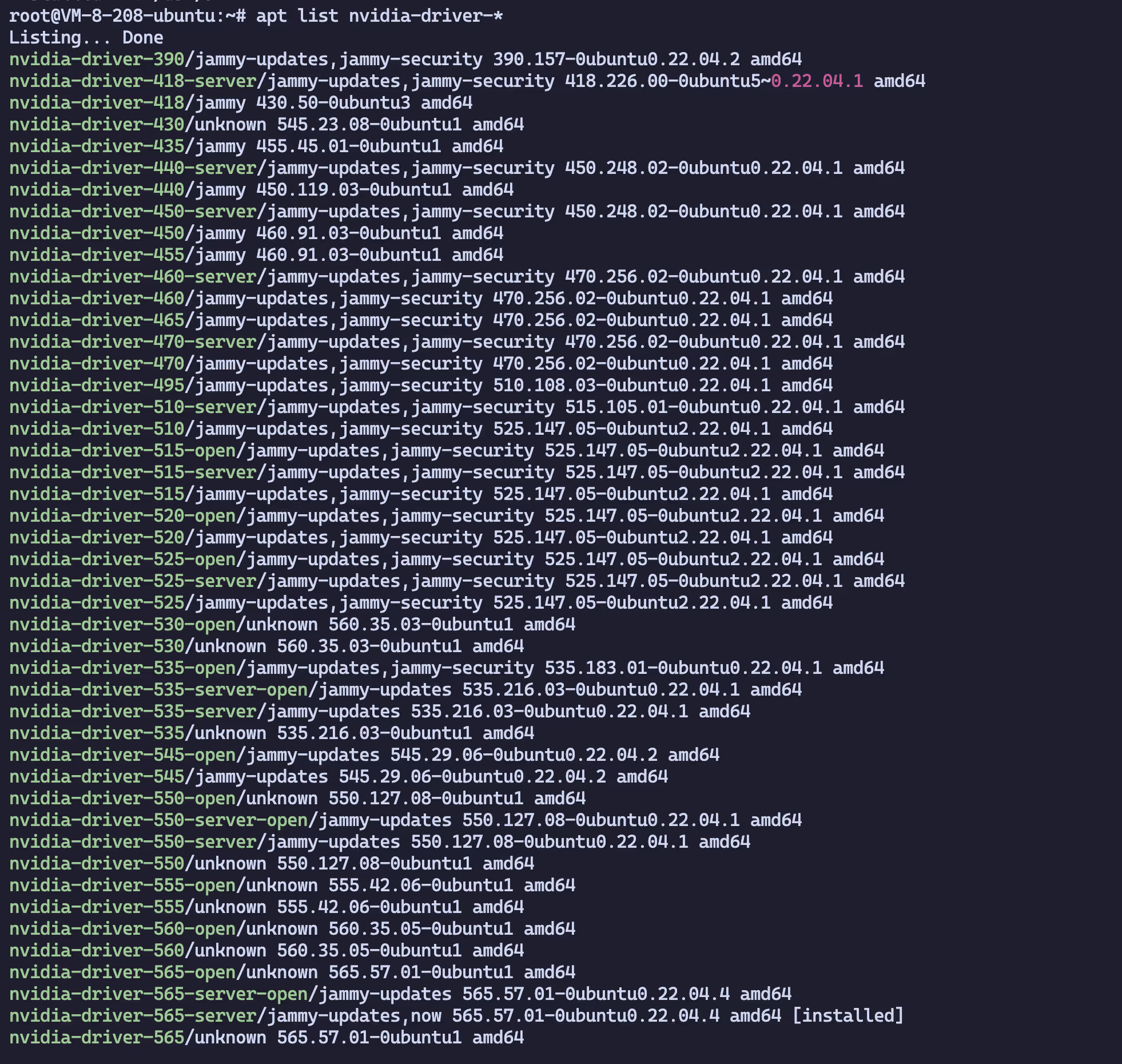
安装所需的驱动程序版本apt
复制
sudo apt install nvidia-driver-<version>NVIDIA 驱动程序安装后步骤
重新启动系统以确保已加载新版本的驱动程序
复制
sudo reboot验证 NVIDIA 驱动程序安装成功
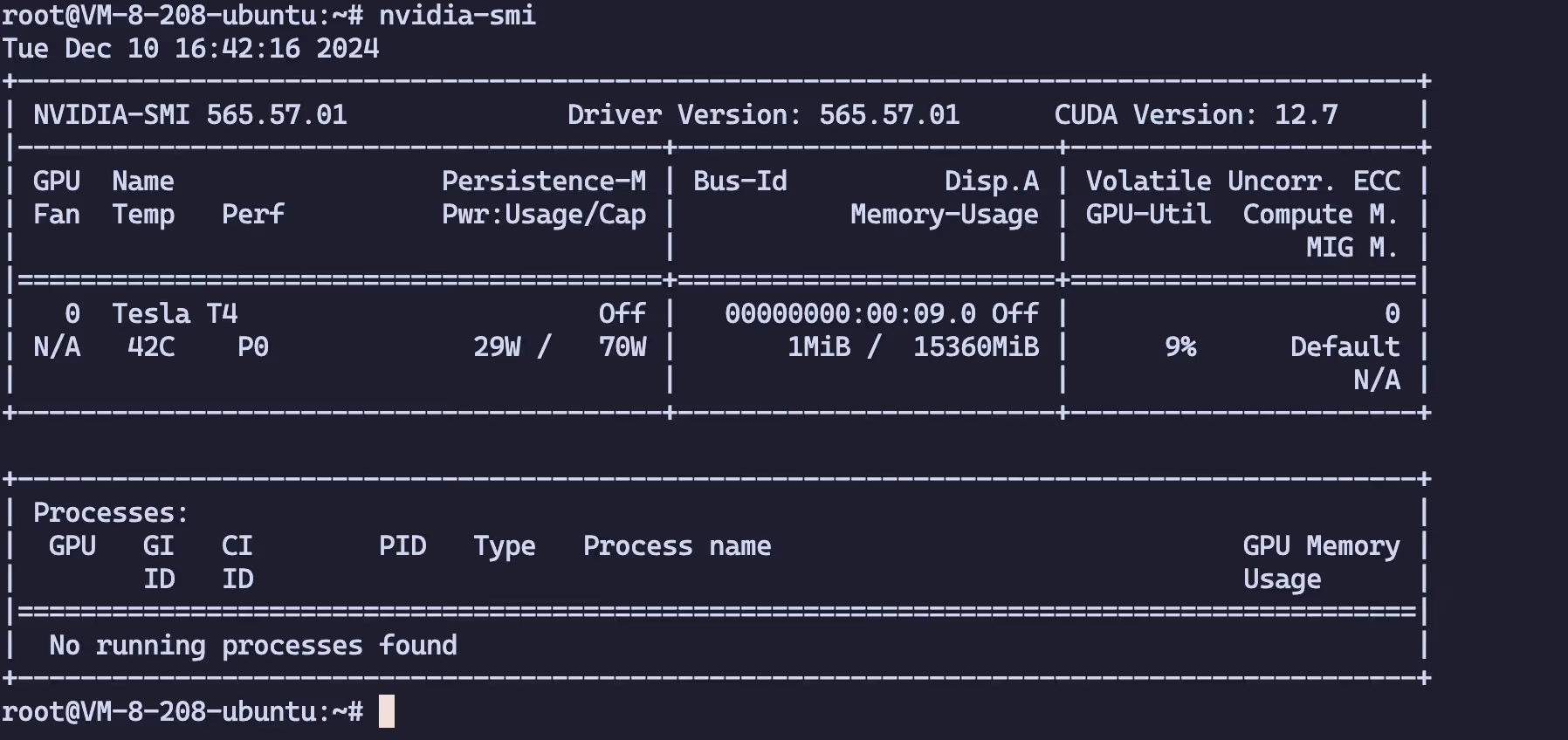
运行nvidia-smi以验证您的驱动程序是否正确安装并识别您环境中的 GPU。根据您的环境,您应该会看到类似这样的内容,以确认您的 NVIDIA GPU 和驱动程序存在。
安装 Vulkan 库
HEAVY.AI 的渲染引擎需要支持 Vulkan 的驱动程序和 Vulkan 库。如果没有这些组件,数据库本身甚至无法启动,除非禁用后端渲染器。
使用 安装 Vulkan 库及其依赖项apt。
复制
sudo apt install libvulkan1有关 Vulkan 故障排除的更多信息,请参阅Vulkan 渲染器部分。
安装CUDA Toolkit
如果您使用上面的选项 1安装了 NVIDIA 驱动程序,则 CUDA 工具包已安装;您可以继续执行下面的验证步骤。
安装 NVIDIA 公共存储库 GPG 密钥。
复制
distribution=$(. /etc/os-release;echo $ID$VERSION_ID | sed -e 's/\.//g')sudo apt-key adv --fetch-keys \https://developer.download.nvidia.com/compute/cuda/repos/$distribution/x86_64/3bf863cc.pub添加存储库。
复制
echo "deb http://developer.download.nvidia.com/compute/cuda/repos/$distribution/x86_64 /" \| sudo tee /etc/apt/sources.list.d/cuda.listapt update列出可用的 Cuda 工具包版本。
root@VM-8-208-ubuntu:~# apt list cuda-toolkit-* | grep -v config
WARNING: apt does not have a stable CLI interface. Use with caution in scripts.
Listing...cuda-toolkit-11-7/unknown 11.7.1-1 amd64cuda-toolkit-11-8/unknown 11.8.0-1 amd64cuda-toolkit-12-0/unknown 12.0.1-1 amd64cuda-toolkit-12-1/unknown 12.1.1-1 amd64cuda-toolkit-12-2/unknown 12.2.2-1 amd64cuda-toolkit-12-3/unknown 12.3.2-1 amd64cuda-toolkit-12-4/unknown 12.4.1-1 amd64cuda-toolkit-12-5/unknown 12.5.1-1 amd64cuda-toolkit-12-6/unknown 12.6.3-1 amd64cuda-toolkit-12/unknown 12.6.3-1 amd64使用安装 CUDA 工具包apt。
复制
sudo apt install cuda-toolkit-<version>确认
检查一切是否正常且工具包是否已安装。
复制
/usr/local/cuda/bin/nvcc --version
nvcc: NVIDIA (R) Cuda compiler driverCopyright (c) 2005-2020 NVIDIA CorporationBuilt on Mon_Nov_30_19:08:53_PST_2020Cuda compilation tools, release 11.2, V11.2.67Build cuda_11.2.r11.2/compiler.29373293_0root@VM-8-208-ubuntu:~# echo 'export PATH=/usr/local/cuda/bin:$PATH' >> ~/.bashrcroot@VM-8-208-ubuntu:~# echo 'export LD_LIBRARY_PATH=/usr/local/cuda/lib64:$LD_LIBRARY_PATH' >> ~/.bashrcroot@VM-8-208-ubuntu:~# source ~/.bashrcroot@VM-8-208-ubuntu:~# nvcc --versionnvcc: NVIDIA (R) Cuda compiler driverCopyright (c) 2005-2024 NVIDIA CorporationBuilt on Tue_Oct_29_23:50:19_PDT_2024Cuda compilation tools, release 12.6, V12.6.85Build cuda_12.6.r12.6/compiler.35059454_0安装Clang
如果您使用 C++ 用户定义函数和/或用户定义表函数等高级功能来扩展数据库功能,则必须安装 Clang。使用 安装 Clang 和 LLVM 依赖项apt。
复制
sudo apt install clang确认
检查软件是否已安装且位于执行路径中。
复制
root@VM-8-208-ubuntu:~# clang --versionUbuntu clang version 14.0.0-1ubuntu1.1Target: x86_64-pc-linux-gnuThread model: posixInstalledDir: /usr/bin安装 Docker
apt install curl vim wget gnupg dpkg apt-transport-https lsb-release ca-certificates
curl -sS https://download.docker.com/linux/debian/gpg | gpg --dearmor > /usr/share/keyrings/docker-ce.gpg
echo "deb [arch=$(dpkg --print-architecture) signed-by=/usr/share/keyrings/docker-ce.gpg] https://mirrors.tuna.tsinghua.edu.cn/docker-ce/linux/ubuntu $(lsb_release -sc) stable" > /etc/apt/sources.list.d/docker.list
apt update && apt install docker-ce docker-ce-cli containerd.io docker-compose-pluginroot@catcat:~# cat /etc/docker/daemon.json{ "log-driver": "json-file", "log-opts": { "max-size": "20m", "max-file": "3" }, "experimental":true, "data-root": "/root/docker_data", "registry-mirrors": ["https://docker.1ms.run" ]}systemctl restart docker安装 GPU-Docker 组件
安装 gpu-docekr
apt-get install -y nvidia-docker2nvidia-ctk runtime configure --runtime=docker
这个会修改 daemon.json 文件,增加容器运行时root@VM-8-208-ubuntu:~# nvidia-ctk runtime configure --runtime=dockerINFO[0000] Loading config from /etc/docker/daemon.jsonINFO[0000] Wrote updated config to /etc/docker/daemon.jsonINFO[0000] It is recommended that docker daemon be restarted.root@VM-8-208-ubuntu:~# cat /etc/docker/daemon.json{ "data-root": "/root/docker_data", "experimental": true, "log-driver": "json-file", "log-opts": { "max-file": "3", "max-size": "20m" }, "registry-mirrors": [ "https://docker.1ms.run" ], "runtimes": { "nvidia": { "args": [], "path": "nvidia-container-runtime" } }}验证安装
root@VM-8-208-ubuntu:~# systemctl restart dockerroot@VM-8-208-ubuntu:~# docker run --rm -it --gpus all ubuntu:22.04 /bin/bashroot@cad0abb4936b:/# nvidia-smiTue Aug 1 00:57:29 2023+-----------------------------------------------------------------------------+| NVIDIA-SMI 520.61.05 Driver Version: 520.61.05 CUDA Version: 11.8 ||-------------------------------+----------------------+----------------------+| GPU Name Persistence-M| Bus-Id Disp.A | Volatile Uncorr. ECC || Fan Temp Perf Pwr:Usage/Cap| Memory-Usage | GPU-Util Compute M. || | | MIG M. ||===============================+======================+======================|| 0 NVIDIA GeForce ... Off | 00000000:01:00.0 On | N/A || 0% 51C P8 21W / 160W | 528MiB / 6144MiB | 29% Default || | | N/A |+-------------------------------+----------------------+----------------------+
+-----------------------------------------------------------------------------+| Processes: || GPU GI CI PID Type Process name GPU Memory || ID ID Usage ||=============================================================================|+-----------------------------------------------------------------------------+root@cad0abb4936b:/#root@l4d2-forward:~/TeamSpeak# docker logs teamspeak-teamspeak-12024-12-12 05:48:10.030543|INFO |ServerLibPriv | |TeamSpeak 3 Server 3.13.7 (2022-06-20 12:21:53)2024-12-12 05:48:10.030628|INFO |ServerLibPriv | |SystemInformation: Linux 5.10.0-30-amd64 #1 SMP Debian 5.10.218-1 (2024-06-01) x86_64 Binary: 64bit2024-12-12 05:48:10.030651|INFO |ServerLibPriv | |Using hardware aes2024-12-12 05:48:10.030986|INFO |DatabaseQuery | |dbPlugin name: MariaDB plugin, version 3, (c)TeamSpeak Systems GmbH2024-12-12 05:48:10.031040|INFO |DatabaseQuery | |dbPlugin version: 22024-12-12 05:48:18.453775|INFO |SQL | |db_CreateTables() tables created
------------------------------------------------------------------ I M P O R T A N T------------------------------------------------------------------ Server Query Admin Account created loginname= "serveradmin", password= "zKqn6Y0j" apikey= "BAAUOSo-F8ADMyaE9BqtVukv89P60wlNvFykSGq"------------------------------------------------------------------
2024-12-12 05:48:18.515954|WARNING |Accounting | |Unable to open licensekey.dat, falling back to limited functionality2024-12-12 05:48:18.524291|INFO |Accounting | |Licensing Information2024-12-12 05:48:18.524324|INFO |Accounting | |licensed to : Anonymous2024-12-12 05:48:18.524344|INFO |Accounting | |type : No License2024-12-12 05:48:18.524363|INFO |Accounting | |starting date : Tue Feb 1 00:00:00 20222024-12-12 05:48:18.524380|INFO |Accounting | |ending date : Thu Jul 1 00:00:00 20272024-12-12 05:48:18.524392|INFO |Accounting | |max virtualservers: 12024-12-12 05:48:18.524403|INFO |Accounting | |max slots : 322024-12-12 05:48:19.071662|INFO | | |Puzzle precompute time: 5302024-12-12 05:48:19.072464|INFO |FileManager | |listening on 0.0.0.0:30033, [::]:300332024-12-12 05:48:19.077083|INFO |VirtualSvrMgr | |executing monthly interval2024-12-12 05:48:19.077549|INFO |VirtualSvrMgr | |reset virtualserver traffic statistics2024-12-12 05:48:19.084343|INFO |Query | |Using a query thread pool size of 22024-12-12 05:48:19.130955|INFO |VirtualServerBase|1 |listening on 0.0.0.0:9987, [::]:99872024-12-12 05:48:19.135106|WARNING |VirtualServer |1 |--------------------------------------------------------2024-12-12 05:48:19.135139|WARNING |VirtualServer |1 |ServerAdmin privilege key created, please use the line below2024-12-12 05:48:19.135158|WARNING |VirtualServer |1 |token=BK2xL7Bm4Q2NEq4hsYYUJm4N1pVFuyZn6s33Jr6x2024-12-12 05:48:19.135173|WARNING |VirtualServer |1 |--------------------------------------------------------
------------------------------------------------------------------ I M P O R T A N T------------------------------------------------------------------ ServerAdmin privilege key created, please use it to gain serveradmin rights for your virtualserver. please also check the doc/privilegekey_guide.txt for details.
token=BK2xL7Bm4Q2NEq4hsYYUJm4N1pVFuyZn6s33Jr6x------------------------------------------------------------------
2024-12-12 05:48:19.135520|INFO |Query | |listening for query on 0.0.0.0:10011, [::]:100112024-12-12 05:48:19.135711|INFO |CIDRManager | |updated query_ip_allowlist ips: 127.0.0.1/32, ::1/128,root@l4d2-forward:~/TeamSpeak#分享文章
生成精美分享图或复制链接,与更多人分享本文。
继续阅读
换条路线
从其他文章中稳定抽取
最后更新于 ,距今已过 302 天
部分内容可能已过时
评论