
Install NVIDIA GPU Drivers on Ubuntu 22.04
Based on Ubuntu 22.04
Prerequisites
Hardware check
Verify that your system has a compatible NVIDIA GPU. If you do not know the exact GPU model in your system, run the following command:
Copy
lspci -v | egrep "NVIDIA"This command should output one line for each installed NVIDIA GPU. Check whether your hardware is compatible on our Hardware Requirements page. Note that you can still install the CPU version of HEAVY.AI on machines without an NVIDIA GPU.
System update before installation
Upgrade the system and kernel, then reboot if needed.
Copy
sudo apt updateCopy
sudo apt upgrade -ysudo rebootInstall kernel headers
Install kernel headers and development packages.
Copy
sudo apt install linux-headers-$(uname -r)Install additional packages.
Copy
sudo apt install pciutilsInstall Vulkan libraries
The HEAVY.AI rendering engine (available in the Enterprise Edition) requires drivers that support Vulkan and the Vulkan libraries. Without these components, the database itself might fail to start.
Use apt to install the Vulkan libraries and their dependencies.
Copy
sudo apt install libvulkan1For more information on Vulkan troubleshooting, see the Vulkan Renderer section.
Install NVIDIA drivers
Run this command to get a list of available driver versions:
apt list nvidia-driver-*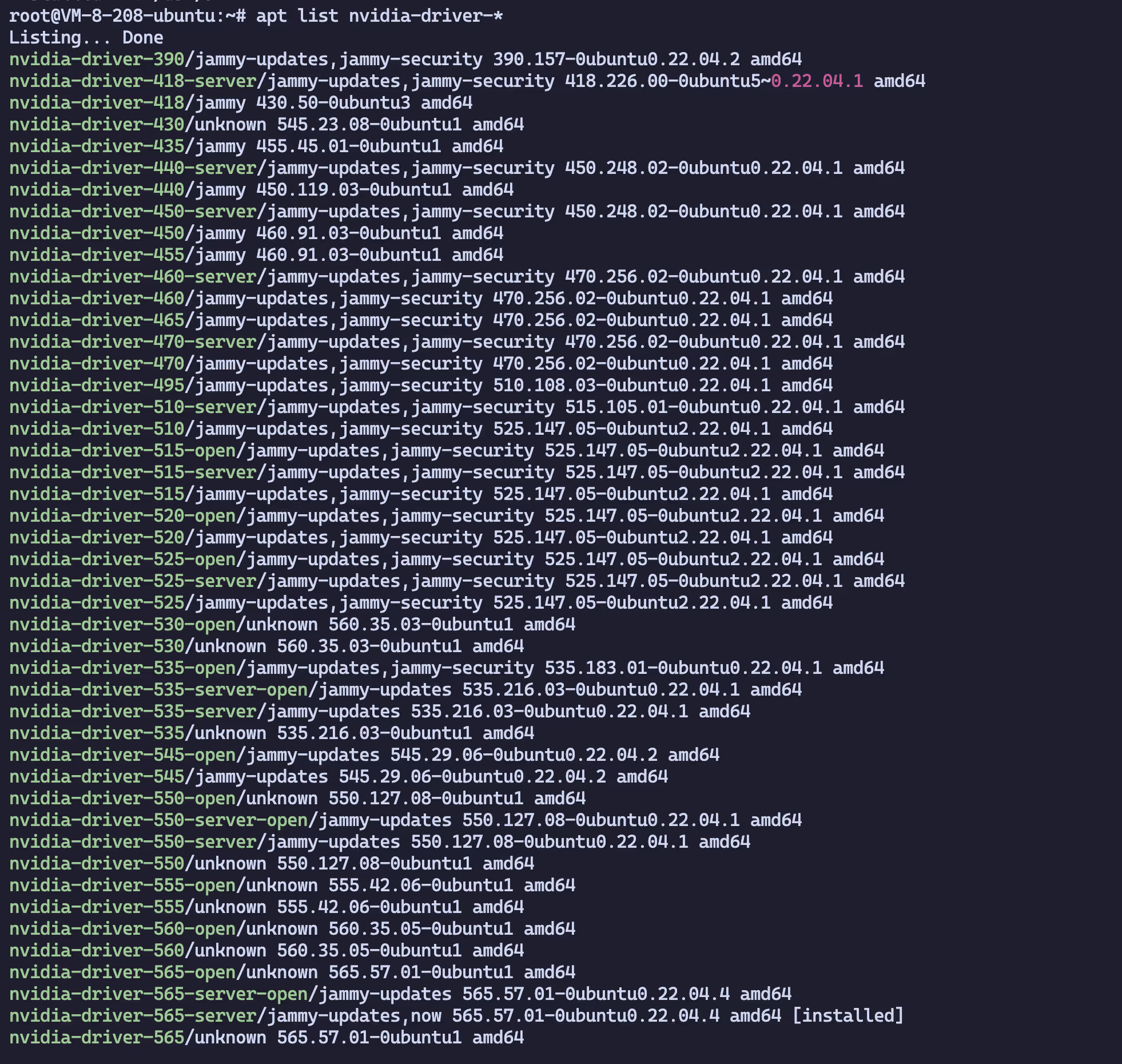
Use apt to install the desired driver version.
Copy
sudo apt install nvidia-driver-<version>Post-install steps for NVIDIA drivers
Reboot the system to ensure the new driver version is loaded.
Copy
sudo rebootVerify that NVIDIA drivers are installed correctly
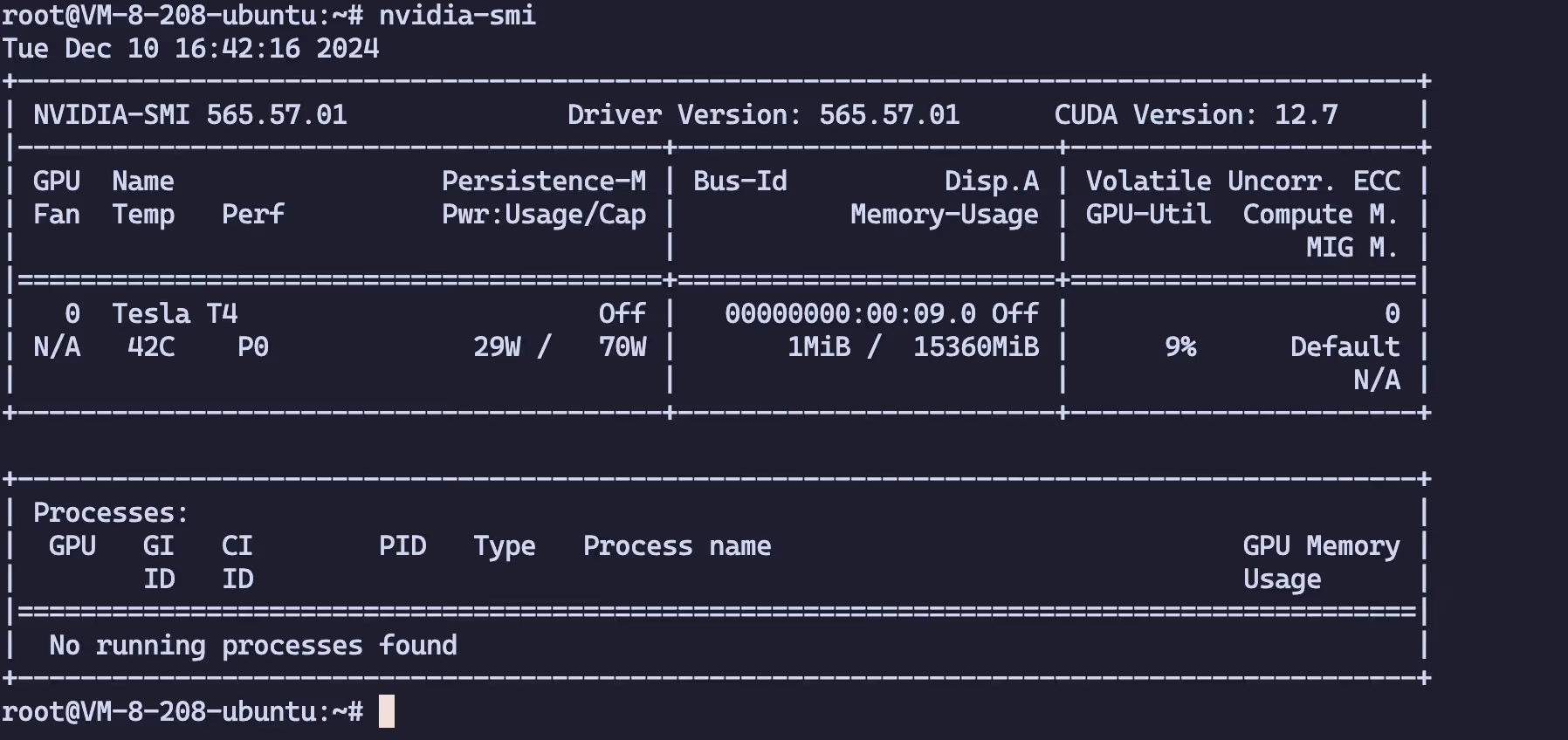
Run nvidia-smi to verify that your drivers are installed correctly and that the GPUs in your environment are detected. Depending on your environment, you should see output similar to the following, confirming that your NVIDIA GPU and drivers are present.
Install Vulkan libraries
The HEAVY.AI rendering engine requires drivers that support Vulkan and the Vulkan libraries. Without these components, the database itself cannot even start unless the backend renderer is disabled.
Use apt to install the Vulkan libraries and their dependencies.
Copy
sudo apt install libvulkan1For more information on Vulkan troubleshooting, see the Vulkan Renderer section.
Install CUDA Toolkit
If you installed the NVIDIA drivers using Option 1 above, the CUDA Toolkit is already installed; you can skip directly to the verification steps below.
Install the NVIDIA public repository GPG key.
Copy
distribution=$(. /etc/os-release;echo $ID$VERSION_ID | sed -e 's/\.//g')sudo apt-key adv --fetch-keys \https://developer.download.nvidia.com/compute/cuda/repos/$distribution/x86_64/3bf863cc.pubAdd the repository.
Copy
echo "deb http://developer.download.nvidia.com/compute/cuda/repos/$distribution/x86_64 /" \| sudo tee /etc/apt/sources.list.d/cuda.listapt updateList available CUDA Toolkit versions.
root@VM-8-208-ubuntu:~# apt list cuda-toolkit-* | grep -v config
WARNING: apt does not have a stable CLI interface. Use with caution in scripts.
Listing...cuda-toolkit-11-7/unknown 11.7.1-1 amd64cuda-toolkit-11-8/unknown 11.8.0-1 amd64cuda-toolkit-12-0/unknown 12.0.1-1 amd64cuda-toolkit-12-1/unknown 12.1.1-1 amd64cuda-toolkit-12-2/unknown 12.2.2-1 amd64cuda-toolkit-12-3/unknown 12.3.2-1 amd64cuda-toolkit-12-4/unknown 12.4.1-1 amd64cuda-toolkit-12-5/unknown 12.5.1-1 amd64cuda-toolkit-12-6/unknown 12.6.3-1 amd64cuda-toolkit-12/unknown 12.6.3-1 amd64Use apt to install the CUDA Toolkit.
Copy
sudo apt install cuda-toolkit-<version>Verification
Check that everything is working properly and that the toolkit has been installed.
Copy
/usr/local/cuda/bin/nvcc --version
nvcc: NVIDIA (R) Cuda compiler driverCopyright (c) 2005-2020 NVIDIA CorporationBuilt on Mon_Nov_30_19:08:53_PST_2020Cuda compilation tools, release 11.2, V11.2.67Build cuda_11.2.r11.2/compiler.29373293_0root@VM-8-208-ubuntu:~# echo 'export PATH=/usr/local/cuda/bin:$PATH' >> ~/.bashrcroot@VM-8-208-ubuntu:~# echo 'export LD_LIBRARY_PATH=/usr/local/cuda/lib64:$LD_LIBRARY_PATH' >> ~/.bashrcroot@VM-8-208-ubuntu:~# source ~/.bashrcroot@VM-8-208-ubuntu:~# nvcc --versionnvcc: NVIDIA (R) Cuda compiler driverCopyright (c) 2005-2024 NVIDIA CorporationBuilt on Tue_Oct_29_23:50:19_PDT_2024Cuda compilation tools, release 12.6, V12.6.85Build cuda_12.6.r12.6/compiler.35059454_0Install Clang
If you use advanced features such as C++ user-defined functions and/or user-defined table functions to extend database functionality, you must install Clang. Use apt to install Clang and its LLVM dependencies.
Copy
sudo apt install clangVerification
Verify that the software is installed and available on the execution path.
Copy
root@VM-8-208-ubuntu:~# clang --versionUbuntu clang version 14.0.0-1ubuntu1.1Target: x86_64-pc-linux-gnuThread model: posixInstalledDir: /usr/binInstall Docker
apt install curl vim wget gnupg dpkg apt-transport-https lsb-release ca-certificates
curl -sS https://download.docker.com/linux/debian/gpg | gpg --dearmor > /usr/share/keyrings/docker-ce.gpg
echo "deb [arch=$(dpkg --print-architecture) signed-by=/usr/share/keyrings/docker-ce.gpg] https://mirrors.tuna.tsinghua.edu.cn/docker-ce/linux/ubuntu $(lsb_release -sc) stable" > /etc/apt/sources.list.d/docker.list
apt update && apt install docker-ce docker-ce-cli containerd.io docker-compose-pluginroot@catcat:~# cat /etc/docker/daemon.json{ "log-driver": "json-file", "log-opts": { "max-size": "20m", "max-file": "3" }, "experimental":true, "data-root": "/root/docker_data", "registry-mirrors": ["https://docker.1ms.run" ]}systemctl restart dockerInstall GPU-Docker components
Install gpu-docekr
apt-get install -y nvidia-docker2nvidia-ctk runtime configure --runtime=docker
This modifies the daemon.json file to add the container runtimeroot@VM-8-208-ubuntu:~# nvidia-ctk runtime configure --runtime=dockerINFO[0000] Loading config from /etc/docker/daemon.jsonINFO[0000] Wrote updated config to /etc/docker/daemon.jsonINFO[0000] It is recommended that docker daemon be restarted.root@VM-8-208-ubuntu:~# cat /etc/docker/daemon.json{ "data-root": "/root/docker_data", "experimental": true, "log-driver": "json-file", "log-opts": { "max-file": "3", "max-size": "20m" }, "registry-mirrors": [ "https://docker.1ms.run" ], "runtimes": { "nvidia": { "args": [], "path": "nvidia-container-runtime" } }}Verify the installation
root@VM-8-208-ubuntu:~# systemctl restart dockerroot@VM-8-208-ubuntu:~# docker run --rm -it --gpus all ubuntu:22.04 /bin/bashroot@cad0abb4936b:/# nvidia-smiTue Aug 1 00:57:29 2023+-----------------------------------------------------------------------------+| NVIDIA-SMI 520.61.05 Driver Version: 520.61.05 CUDA Version: 11.8 ||-------------------------------+----------------------+----------------------|| GPU Name Persistence-M| Bus-Id Disp.A | Volatile Uncorr. ECC || Fan Temp Perf Pwr:Usage/Cap| Memory-Usage | GPU-Util Compute M. || | | MIG M. ||===============================+======================+======================|| 0 NVIDIA GeForce ... Off | 00000000:01:00.0 On | N/A || 0% 51C P8 21W / 160W | 528MiB / 6144MiB | 29% Default || | | N/A |+-------------------------------+----------------------+----------------------+
+-----------------------------------------------------------------------------+| Processes: || GPU GI CI PID Type Process name GPU Memory || ID ID Usage ||=============================================================================|+-----------------------------------------------------------------------------+root@cad0abb4936b:/#root@l4d2-forward:~/TeamSpeak# docker logs teamspeak-teamspeak-12024-12-12 05:48:10.030543|INFO |ServerLibPriv | |TeamSpeak 3 Server 3.13.7 (2022-06-20 12:21:53)2024-12-12 05:48:10.030628|INFO |ServerLibPriv | |SystemInformation: Linux 5.10.0-30-amd64 #1 SMP Debian 5.10.218-1 (2024-06-01) x86_64 Binary: 64bit2024-12-12 05:48:10.030651|INFO |ServerLibPriv | |Using hardware aes2024-12-12 05:48:10.030986|INFO |DatabaseQuery | |dbPlugin name: MariaDB plugin, version 3, (c)TeamSpeak Systems GmbH2024-12-12 05:48:10.031040|INFO |DatabaseQuery | |dbPlugin version: 22024-12-12 05:48:18.453775|INFO |SQL | |db_CreateTables() tables created
------------------------------------------------------------------ I M P O R T A N T------------------------------------------------------------------ Server Query Admin Account created loginname= "serveradmin", password= "zKqn6Y0j" apikey= "BAAUOSo-F8ADMyaE9BqtVukv89P60wlNvFykSGq"------------------------------------------------------------------
2024-12-12 05:48:18.515954|WARNING |Accounting | |Unable to open licensekey.dat, falling back to limited functionality2024-12-12 05:48:18.524291|INFO |Accounting | |Licensing Information2024-12-12 05:48:18.524324|INFO |Accounting | |licensed to : Anonymous2024-12-12 05:48:18.524344|INFO |Accounting | |type : No License2024-12-12 05:48:18.524363|INFO |Accounting | |starting date : Tue Feb 1 00:00:00 20222024-12-12 05:48:18.524380|INFO |Accounting | |ending date : Thu Jul 1 00:00:00 20272024-12-12 05:48:18.524392|INFO |Accounting | |max virtualservers: 12024-12-12 05:48:18.524403|INFO |Accounting | |max slots : 322024-12-12 05:48:19.071662|INFO | | |Puzzle precompute time: 5302024-12-12 05:48:19.072464|INFO |FileManager | |listening on 0.0.0.0:30033, [::]:300332024-12-12 05:48:19.077083|INFO |VirtualSvrMgr | |executing monthly interval2024-12-12 05:48:19.077549|INFO |VirtualSvrMgr | |reset virtualserver traffic statistics2024-12-12 05:48:19.084343|INFO |Query | |Using a query thread pool size of 22024-12-12 05:48:19.130955|INFO |VirtualServerBase|1 |listening on 0.0.0.0:9987, [::]:99872024-12-12 05:48:19.135106|WARNING |VirtualServer |1 |--------------------------------------------------------2024-12-12 05:48:19.135139|WARNING |VirtualServer |1 |ServerAdmin privilege key created, please use the line below2024-12-12 05:48:19.135158|WARNING |VirtualServer |1 |token=BK2xL7Bm4Q2NEq4hsYYUJm4N1pVFuyZn6s33Jr6x2024-12-12 05:48:19.135173|WARNING |VirtualServer |1 |--------------------------------------------------------
------------------------------------------------------------------ I M P O R T A N T------------------------------------------------------------------ ServerAdmin privilege key created, please use it to gain serveradmin rights for your virtualserver. please also check the doc/privilegekey_guide.txt for details.
token=BK2xL7Bm4Q2NEq4hsYYUJm4N1pVFuyZn6s33Jr6x------------------------------------------------------------------
2024-12-12 05:48:19.135520|INFO |Query | |listening for query on 0.0.0.0:10011, [::]:100112024-12-12 05:48:19.135711|INFO |CIDRManager | |updated query_ip_allowlist ips: 127.0.0.1/32, ::1/128,root@l4d2-forward:~/TeamSpeak#