
Fixing Samsung 990 Pro SSD ext4 Filesystem Read-Only Issue
Problem Background
If you’re experiencing ext4 filesystem suddenly becoming read-only on a Linux system with Samsung 990 Pro SSD, or seeing drive drop phenomena in system logs while hardware detection tools report no errors, you may have encountered a known Samsung SSD issue.
Typical symptoms of this problem include:
- Filesystem suddenly switches to read-only mode
- Unable to write any data
- I/O errors may appear in system logs
- Hard drive health checks with
smartctland similar tools show normal status - Particularly common with Samsung 990 Pro drives running firmware version
4B2QJXD7or earlier versions
The issue manifests with symptoms similar to the following image (symptoms disappear after server reboot, resembling a drive drop):

WARNINGBefore performing any operations, make sure to back up your important data! While this issue typically doesn’t cause data loss, it’s always better to be safe.
Problem Investigation
1. Check Filesystem Status
First, confirm whether the filesystem has actually become read-only:
# Check mount statusmount | grep "ro,"
# Try creating a test filetouch /path/to/mountpoint/test.txtIf you see a Read-only file system error, the filesystem has indeed become read-only.
2. Check System Logs
Check system logs for more information:
# View kernel logsdmesg | grep -i "error\|ext4\|nvme"
# View system logsjournalctl -xe | grep -i "error\|ext4\|nvme"3. Check SSD Information
View your SSD’s model and firmware version:
# View NVMe device informationsudo nvme list
# View detailed informationsudo nvme id-ctrl /dev/nvme0
# Use smartctl to checksudo smartctl -a /dev/nvme0If your device is a Samsung 990 Pro with firmware version 4B2QJXD7 or similar, you’ve likely encountered Samsung SSD’s power management bug.
Solutions
This problem has two main solutions. I recommend trying Solution 2 (kernel parameter fix) first, as it’s simpler and takes effect immediately. If the problem persists, then consider updating the firmware.
Solution 1: Update SSD Firmware
Samsung provides Samsung Magician software for Windows users, but Linux users can use Samsung’s bootable ISO images to update firmware.
Step 1: Download Firmware
Visit Samsung’s official firmware download page:
https://semiconductor.samsung.com/consumer-storage/support/tools/
Find and download the latest firmware ISO image for your SSD model.
Step 2: Extract and Run Firmware Update Tool
You don’t need to burn a CD or create a bootable USB drive - you can extract and run it directly on your Linux system:
# Download the ISO image (replace with actual download link)curl -OL https://semiconductor.samsung.com/.../firmware.iso
# Extract initrdbsdtar -xf firmware.iso initrd
# Extract root filesystembsdtar -xf initrd root
# Run firmware update toolsudo ./root/fumagician/fumagician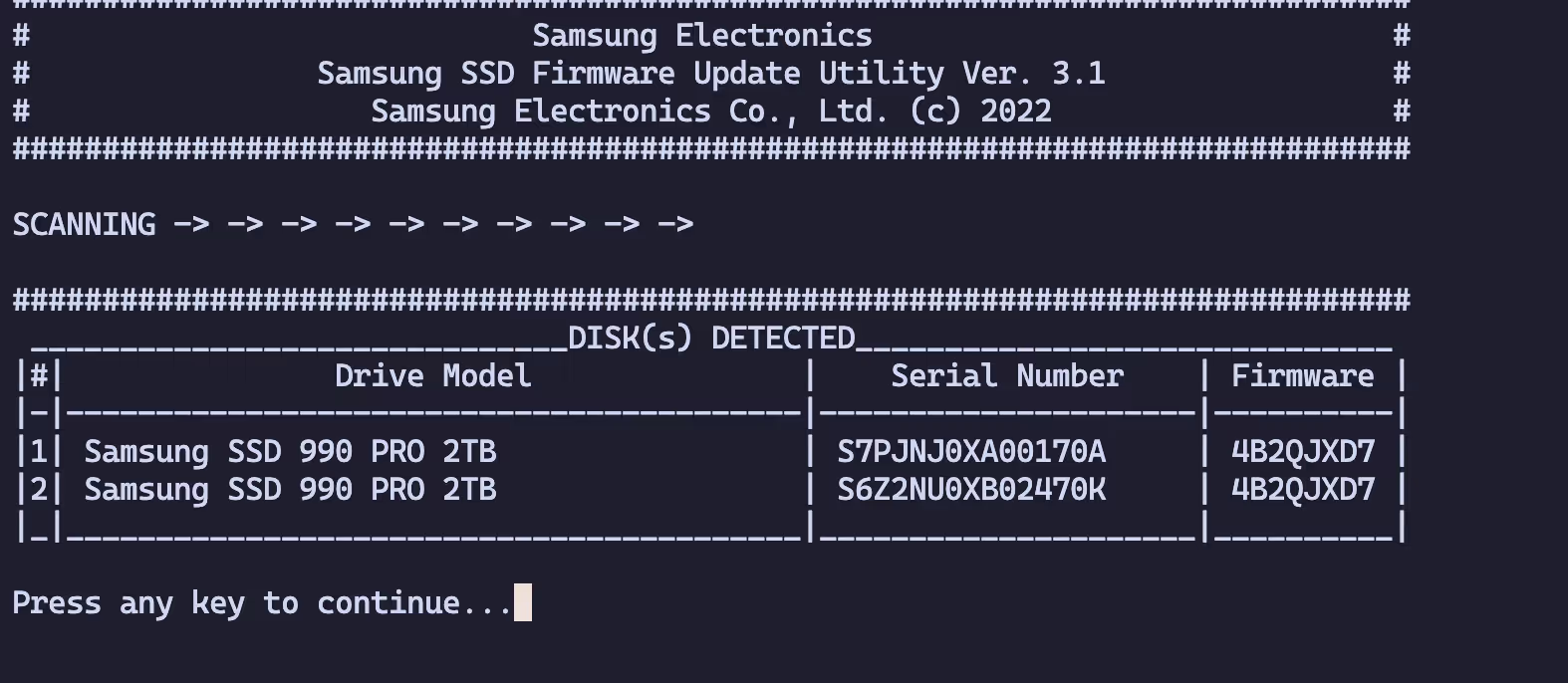
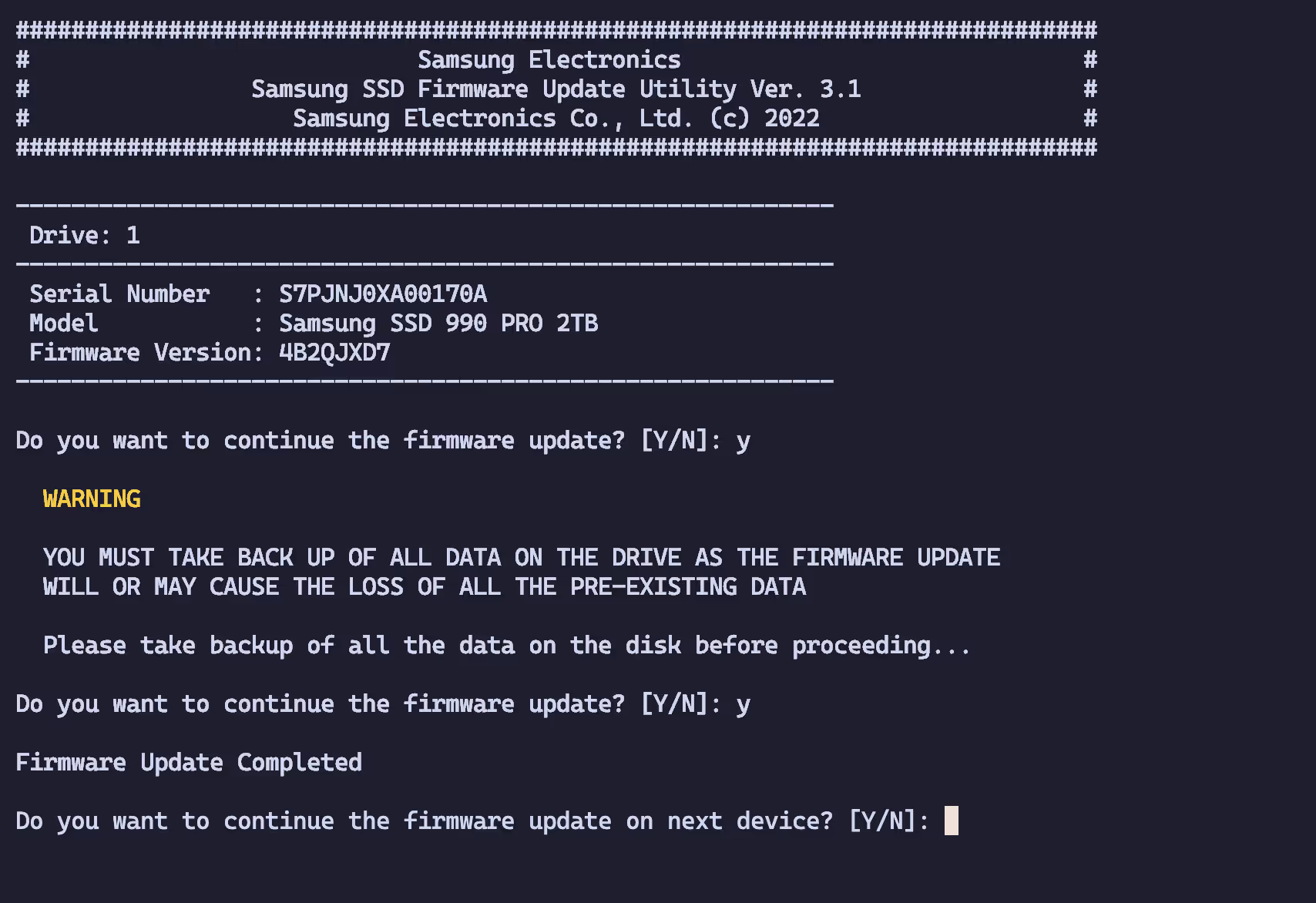
Step 3: Reboot System
After the firmware update completes, reboot your system for the update to take effect:
sudo rebootSolution 2: Kernel Parameter Fix (Recommended)
This is a simpler and proven permanent solution. The root cause is Samsung SSD’s power management feature having compatibility issues with Linux, and disabling NVMe power state management can completely resolve the issue.
TIPThis solution has been verified effective on multiple affected systems and is the most recommended approach.
Step 1: Edit GRUB Configuration
sudo nano /etc/default/grubFind the GRUB_CMDLINE_LINUX_DEFAULT line and add the following parameter inside the quotes:
nvme_core.default_ps_max_latency_us=0Example after modification:
GRUB_CMDLINE_LINUX_DEFAULT="quiet splash nvme_core.default_ps_max_latency_us=0"Step 2: Update GRUB Configuration
# Debian/Ubuntu systemssudo update-grub
# RHEL/CentOS/Fedora systemssudo grub2-mkconfig -o /boot/grub2/grub.cfg
# Arch Linux systemssudo grub-mkconfig -o /boot/grub/grub.cfgStep 3: Reboot System
sudo rebootStep 4: Verify Parameter is Active
After reboot, verify the kernel parameter has taken effect:
cat /proc/cmdline | grep nvme_coreYou should see nvme_core.default_ps_max_latency_us=0 in the output.

Root Cause
This issue is a resurgence of an old Samsung SSD problem in Linux systems. Over the years, various Samsung SSD models (including 970 EVO, 980 Pro, etc.) have experienced similar issues.
The root cause is a compatibility issue between Samsung SSD’s Power State Management feature and the Linux kernel’s NVMe driver. When the SSD enters certain power states, it can cause I/O timeouts, which triggers the filesystem’s protection mechanism to switch the filesystem to read-only mode to prevent data corruption.
By setting nvme_core.default_ps_max_latency_us=0, we disable the NVMe device’s Automatic Power State Transition (APST), forcing the SSD to remain in a high-performance state, thus avoiding this issue.