
Running AdGuard Ad Blocking and Clash Proxy Side by Side
# More Than Just Hating Ads
The existence of ads is not entirely unreasonable. They help creators get paid through additional channels so they can keep offering content for free or at a lower, more acceptable price. But some ad delivery methods are simply inappropriate: in order to maximize profit, they sacrifice the original user experience, which users inevitably resent. They not only ruin the UX, but also leave a negative impression and even hurt the promotional effect. Yet expecting every advertiser to strictly self-regulate and follow best practices is unrealistic. When profit gets big enough, people tend to stop acting like decent people.
Ad-blocking tools are mostly used to block precisely these intrusive, disruptive ads. This not only preserves the user experience, but also saves bandwidth and performance overhead.
Beyond that, AdGuard can also serve as a privacy protection tool. Maybe you just searched for some lecture notes on a search engine, and then your shopping app is flooded with recommendations for teaching materials. For those who care about personal privacy, this is intolerable. I want as little of my personal information as possible to fall into other people’s hands.
While blocking ads, AdGuard can also block various trackers. When we browse the web, we don’t just send a request; we also pass a lot of extra information: the IP address at access time, browser and OS details, language preferences, the previous site visited, and even Cookie contents that reveal more. Ad networks and similar parties use this data to identify you as you and to build a profile on you to push more personalized content.
To stop this, AdGuard not only blocks trackers but also insecure endpoints, blocks communication between sites, spoofs browser info, and more. These are hard to achieve with just browser extensions and filter rules alone, and that’s one of the reasons I chose the app.
# How AdGuard Gets the Job Done
Compared to traditional ad-blocking extensions, AdGuard explains in its KnowledgeBase that it primarily removes ads in three ways:
-
Request blocking: blocking certain connections according to rules. When a webpage loads, some elements will request other resources. AdGuard inspects these requests against rules and blocks them when they match ad or tracker rules, preventing them from loading.
-
Page code filtering: before the page is rendered, AdGuard filters the page source against rules and removes code that contains ads and similar content. Compared to request blocking—which only prevents certain resources from being requested—page code filtering removes parts of the code so that the ad never even attempts a request.
-
CSS Injection and JavaScript: some ads are dynamically injected into the page by JavaScript without requesting external resources. In that case, the first two approaches don’t work and extra steps are needed. AdGuard modifies CSS and JavaScript to completely remove such ads.
The first method is common. The latter two, due to browser extension limitations, can only be fully leveraged at the client (system) level. We’ll talk about things like HTTPS filtering later when we get to configuration details.
# Properly Configuring AdGuard
Although AdGuard is a paid app, it’s not a “pay and forget” kind of tool. To get the most out of AdGuard, you still need to configure it properly. Here I’ll use the desktop version as an example, introduce some AdGuard features, and share my setup for balancing browsing experience and privacy, in the hope it’s helpful to you.
The AdGuard team is actively developing, and the apps/extensions iterate quickly. The content below is time-sensitive; always refer to the AdGuard KnowledgeBase for the latest information.
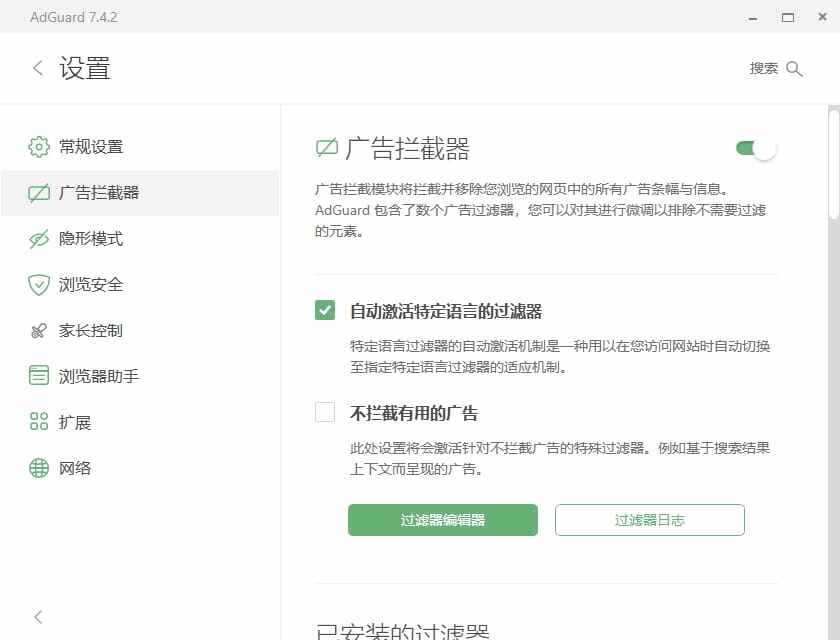
# Choosing the Right Filter Rules
In most cases, filter rules are the core of any ad-blocking tool. AdGuard calls them filters. They don’t just block ads; they can also block trackers, social media widgets, annoying pop-ups, and more. Note that while blocking elements via rules can theoretically speed up page loads, having too many rules means more comparisons per request, which may actually backfire. Just enable what you need.
AdGuard doesn’t enable many filters by default. I’ve turned on:
-
Ad blocking
- AdGuard Base Filter
- EasyList
-
Privacy
- AdGuard Tracking Protection Filter
- EasyPrivacy
-
Social widgets
- AdGuard Social Media Filter
- Fanboy’s Social Blocking List (included in Fanboy’s Annoyances)
-
Annoyances
- AdGuard Annoyances Filter
- Fanboy’s Annoyances
-
Language-specific
- AdGuard Chinese Filter
- EasyList China
Even then, there will still be “stray fish” that slip through. You can use Extensions > AdGuard Extra to manually deal with certain elements.
# Stealth Mode for Strong Privacy Protection
Filters can already block some trackers, but Stealth Mode is the real “big gun” aimed specifically at privacy. As mentioned earlier, the act of “requesting a webpage” already leaks a lot of information. Stealth Mode helps you protect this sensitive data step by step.
# General
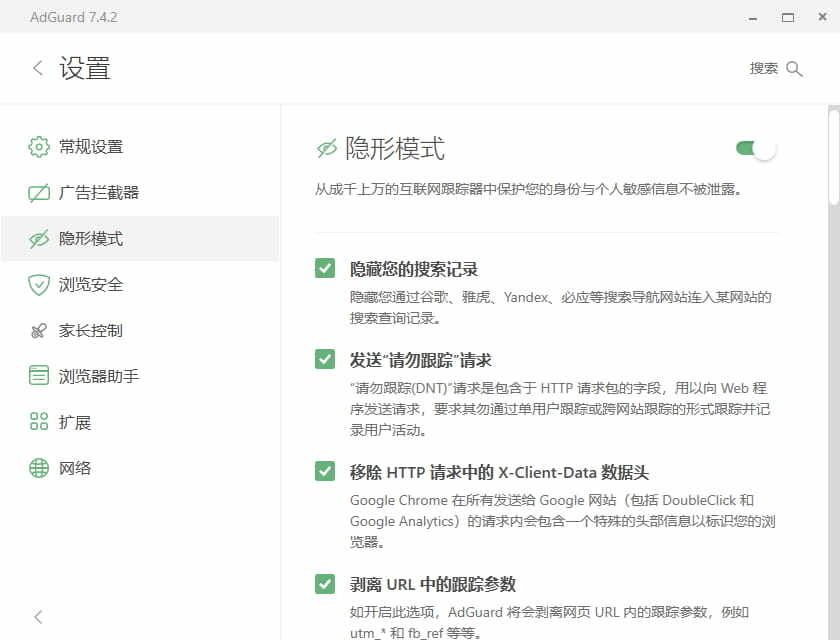
The first four general options offer basic protection against tracking:
-
Hide your search queries hides the search terms you used to reach a site via a search engine, making it harder for the site to learn which search engine you used and what you searched for.
-
Send Do-Not-Track header makes AdGuard send a Do Not Track request with each page load. Some browsers have this option as well. However, honoring it is entirely up to the website.
-
Remove X-Client-Data header from HTTP requests addresses the fact that Chrome sends extra browser-related info to Google for any Google-related page (including DoubleClick and Google Analytics). Removing this header stops that particular data from being sent.
-
Strip tracking parameters from URL removes tracking parameters from URLs to reduce cross-site tracking. You can also manually configure which parameters to treat as tracking parameters.
# Tracking Methods
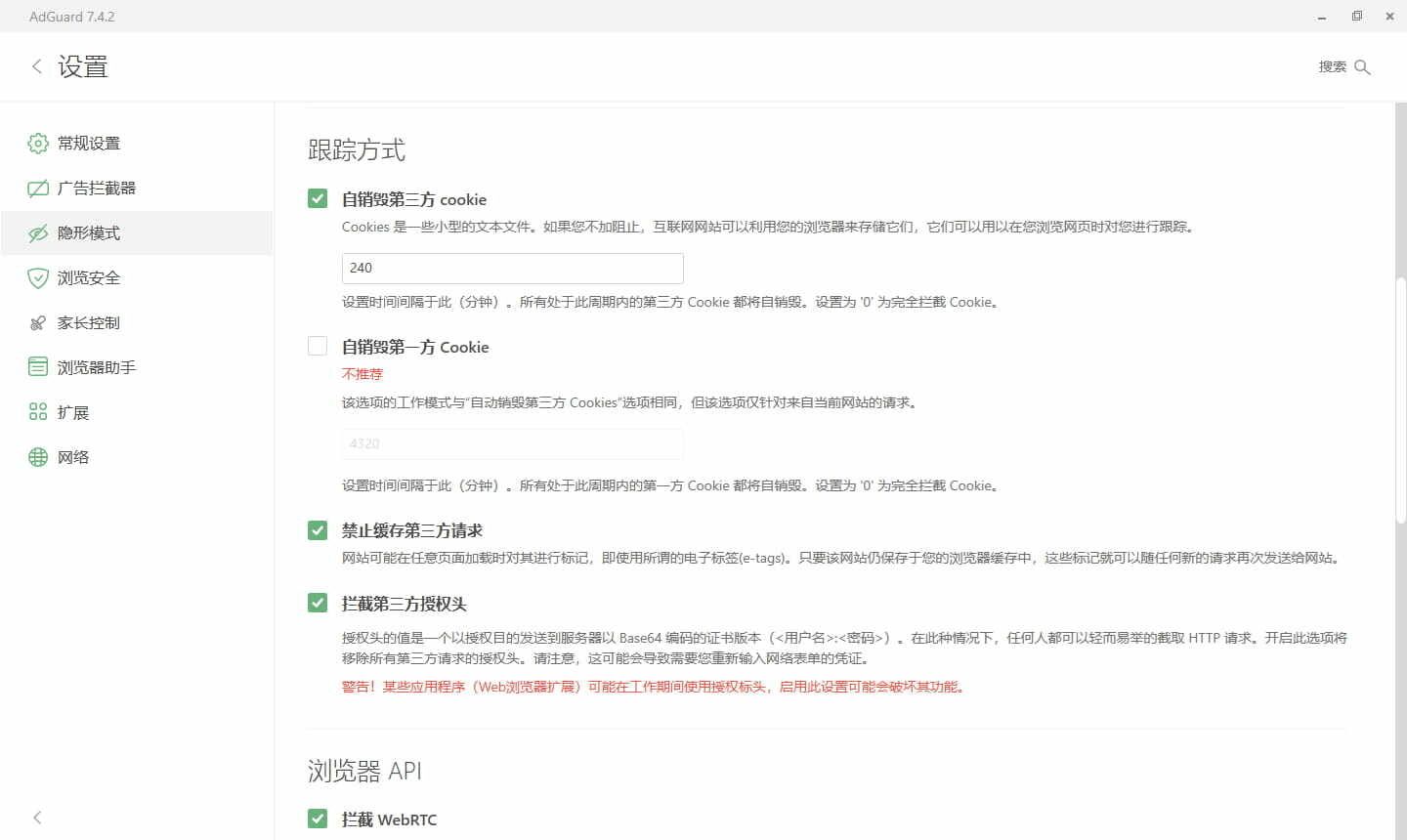
Next, under Tracking Methods, you can restrict several common tracking techniques used by websites:
-
Self-destructing third-party cookies: Cookies are typically used to store things like login sessions. Third-party cookies are those not created by the current site. Even if the site creating the cookie behaves properly, other sites that can read that cookie might misuse it. Compared to outright blocking third-party cookies, self-destructing them won’t break most third-party logins (which often use cookies or Authorization headers to authorize the original site). I set the third-party cookie lifetime to 4 hours here.
-
Self-destructing first-party cookies is similar but affects cookies from the current site. Once they expire you’ll have to log in again on that same site, which is often too much hassle, so I keep this disabled.
-
Disable cache for third-party requests: Some websites add entity tags (ETags) when caching content. As long as the cache persists, subsequent requests may send these tags back to the server, potentially revealing which sites you visited later.
-
Block third-party Authorization header: Authorization headers are primarily used for login and authentication, but they can also be used for tracking. If sent over unencrypted HTTP, they may even expose tokens or other sensitive data. Blocking them can break some apps or browser extensions, though.
# Browser APIs
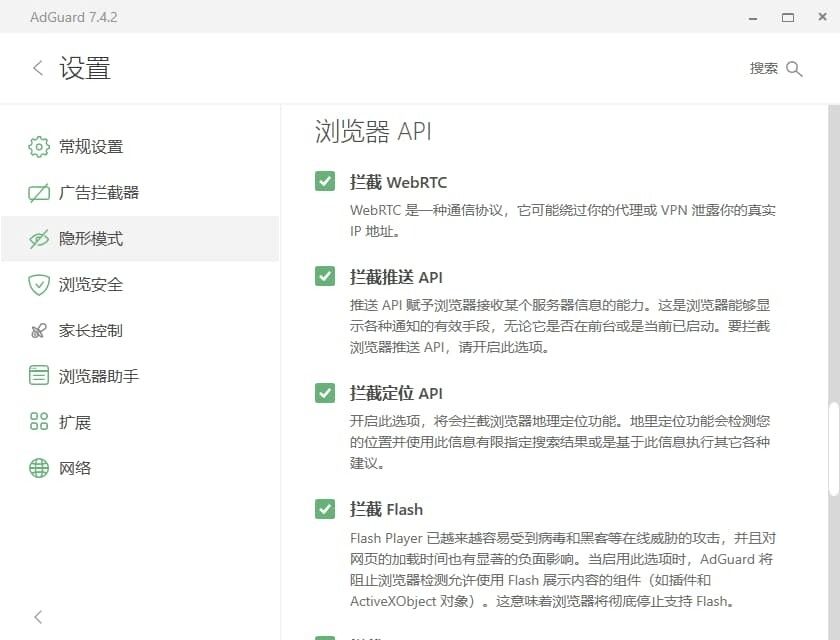
These options only affect browsers, not other apps. Here you can block certain browser APIs that pose security or privacy risks.
-
Block WebRTC: WebRTC is a real-time communication protocol, but it can bypass proxies and leak your real IP address. Disabling it may affect services like Google Voice (especially the web version).
-
Block Push API and Block Location API: these two APIs control browser notifications and geolocation. I rarely use map services on desktop and don’t need browser push at all, so I disable both completely.
-
Block Flash and Block Java: with modern front-end technologies, almost all sites have removed their Flash/Java dependencies. Both Flash and Java also come with serious security issues; by 2020, browsers really shouldn’t still be supporting them.
# Miscellaneous
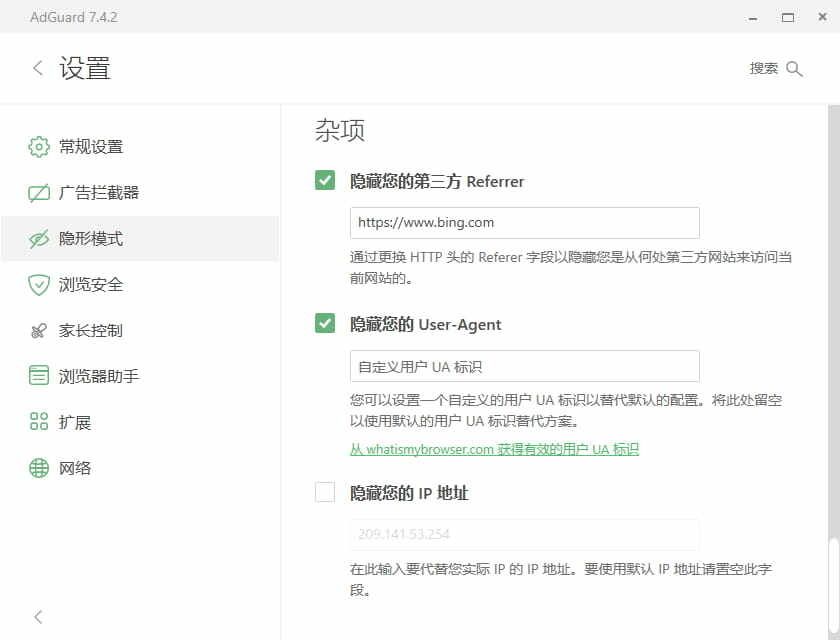
These headers must be included in requests and cannot be removed—but they can be spoofed.
-
Hide your Referrer from third parties hides where you came from. I set my third-party Referrer to
https://www.bing.com. -
Hide your User-Agent: the User-Agent header, also in the request, reveals your browser, OS, and other details. I recommend enabling this and letting AdGuard use its default replacement.
-
Hide your IP address: I always use a proxy, so this option doesn’t do much for me and I keep it disabled.
In addition, there are some options in Extensions and Advanced Settings that are worth enabling, such as AdGuard Extra and the redirect driver mode.
# Mobile: Coexisting With Proxies and HTTPS Filtering
The mobile configuration is largely similar to the desktop one, so I won’t repeat it. One thing to note is that to perform deeper ad blocking, most tools need to use the system proxy. If you already use a network proxy, this can get tricky. AdGuard addresses this by supporting forwarding to a local proxy—which is exactly what sold me on it.
# Working with the Clash Proxy
For the proxy client, I use Clash For Android. It can enable a local proxy without occupying the system VPN slot and exposes an internal DNS port.
If your proxy provider doesn’t support Clash subscriptions or your Clash config doesn’t contain DNS settings, you may need to massage your Clash config using a public API.
# Using an API to Tidy Your Clash Config
Based on the subconverter project, many public APIs can help you easily generate or tidy Clash config files. In particular, you can use the public API provided by subconverter author TindyX to convert your subscription into a Clash config that includes AdGuard DNS.
Make sure your Clash config contains at least something like the following:
port: 7890socks-port: 7891dns: enable: true ipv6: false listen: 127.0.0.1:5450 enhanced-mode: redir-host default-nameserver: - 119.29.29.29 - 119.28.28.28 - 1.0.0.1 - 208.67.222.222 - 1.2.4.8 nameserver: - https://dns.alidns.com/dns-query - https://1.1.1.1/dns-query - tls://dns.adguard.com:853Here, the default DNS listening port (dns.listen) is 5450, the default HTTP proxy port (port) is 7890, and the default SOCKS5 proxy port (socks-port) is 7891. You’ll need these values for later configuration.
# Configuring AdGuard to Forward to Clash
First, go to AdGuard > Sidebar > App Management and disable “route app traffic through AdGuard” for Clash For Android.
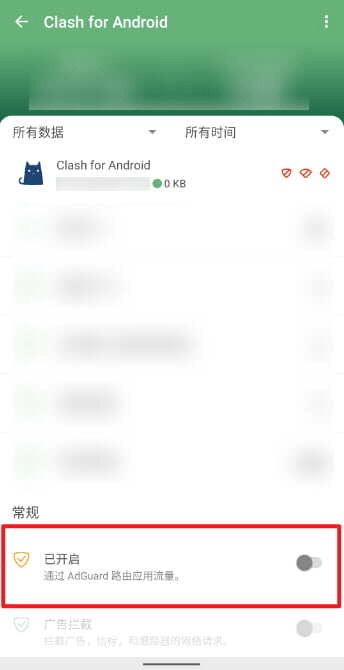
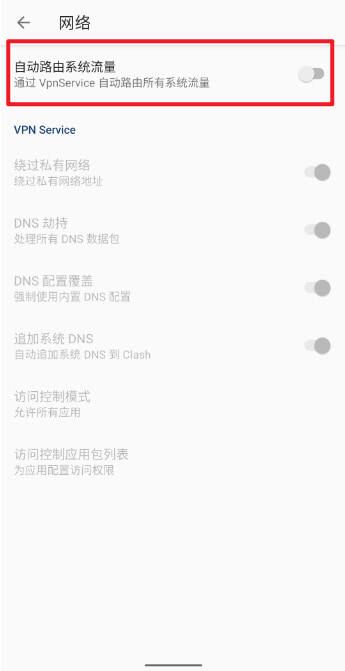
Next, after importing the Clash config into Clash For Android, go to Settings > Network and disable Auto-route system traffic to turn off Clash For Android’s VPN mode. Then enable Clash For Android’s proxy feature.
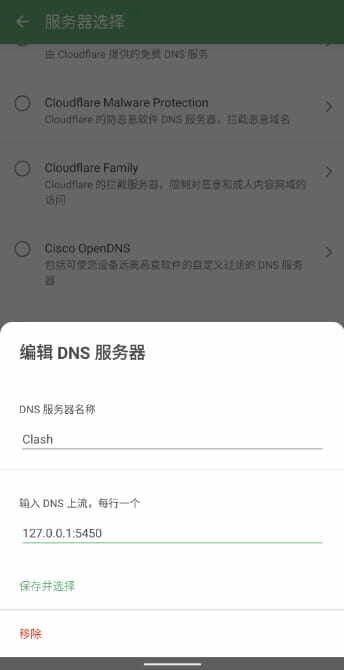
Then go to AdGuard > Sidebar > Settings > DNS > Select DNS server, scroll to the bottom, and Add custom DNS server. The name can be anything; for the address, enter 127.0.0.1:5450 (depending on the dns.listen value you set earlier).
Go back to Settings, tap Network > Proxy, then + Add proxy. The name can be anything; select HTTP (or SOCKS5), set the address to 127.0.0.1, and the port to 7890 (or 7891). After configuration, tap Save and select, then toggle on the proxy switch at the top.
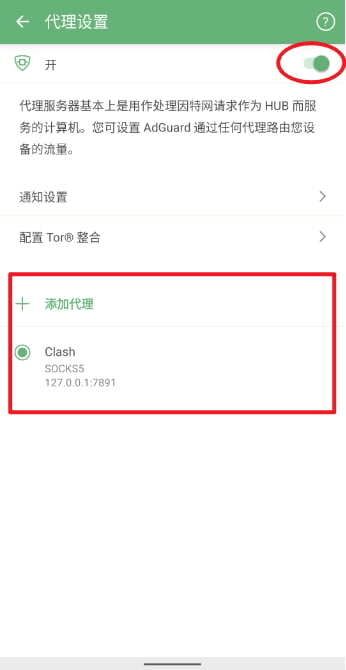
Back in Network, tap Filtering mode and select Local VPN. Then return to the main screen and flip the main switch on. You can now enjoy AdGuard’s privacy protection without interfering with your existing proxy setup.
# Installing Certificates for HTTPS Filtering
AdGuard can filter some code before the page loads, but HTTPS encryption prevents AdGuard from seeing the contents beforehand under normal circumstances, so it cannot filter them. AdGuard works around this by installing a root certificate and decrypting traffic (Surge/Quantumult X use similar approaches for filtering). However, apps targeting API level 24 (Android 7.0) and above no longer trust user certificates.
If your device has Magisk installed, you can use Move Certificates to convert the certificate into a system certificate, allowing AdGuard HTTPS filtering to apply to all apps.
AdGuard, by default, affects nearly every app, which wastes some performance. For system apps like Phone or Messages, and apps that definitely don’t contain ads, you can consider disabling AdGuard filtering.
# Final Thoughts
If you think about it, AdGuard is a paid ad-blocking tool—so what justifies paying for it? Why not pay content creators directly so they can stop showing ads, instead of paying for an ad blocker that deprives them of reasonable (and sometimes unreasonable) income? And ad blockers themselves quickly reach feature saturation; their frameworks stabilize. What really keeps them alive might be those ever-evolving rule lists.
But that doesn’t negate AdGuard’s contribution, even though it’s not the oldest player and it still has shortcomings.
To me, ad blocking is just one part of AdGuard—and not the most important part. The key is in the name: “Guard”. Taking privacy seriously and refusing to compromise seems to be the main message it wants to convey. When a large portion of users don’t care about privacy, believing that “ordinary nobodies” don’t need to bother with it, does that attitude, to some extent, enable some of the questionable behaviors we see?
Maybe AdGuard isn’t the first to implement many of these features, but it certainly does them exceptionally well. It’s the first tool I’m willing to keep running 24/7 alongside my proxy client, and the first one that makes me…