Volcengine DeepSeek R1 Full-Featured API Free Usage Guide
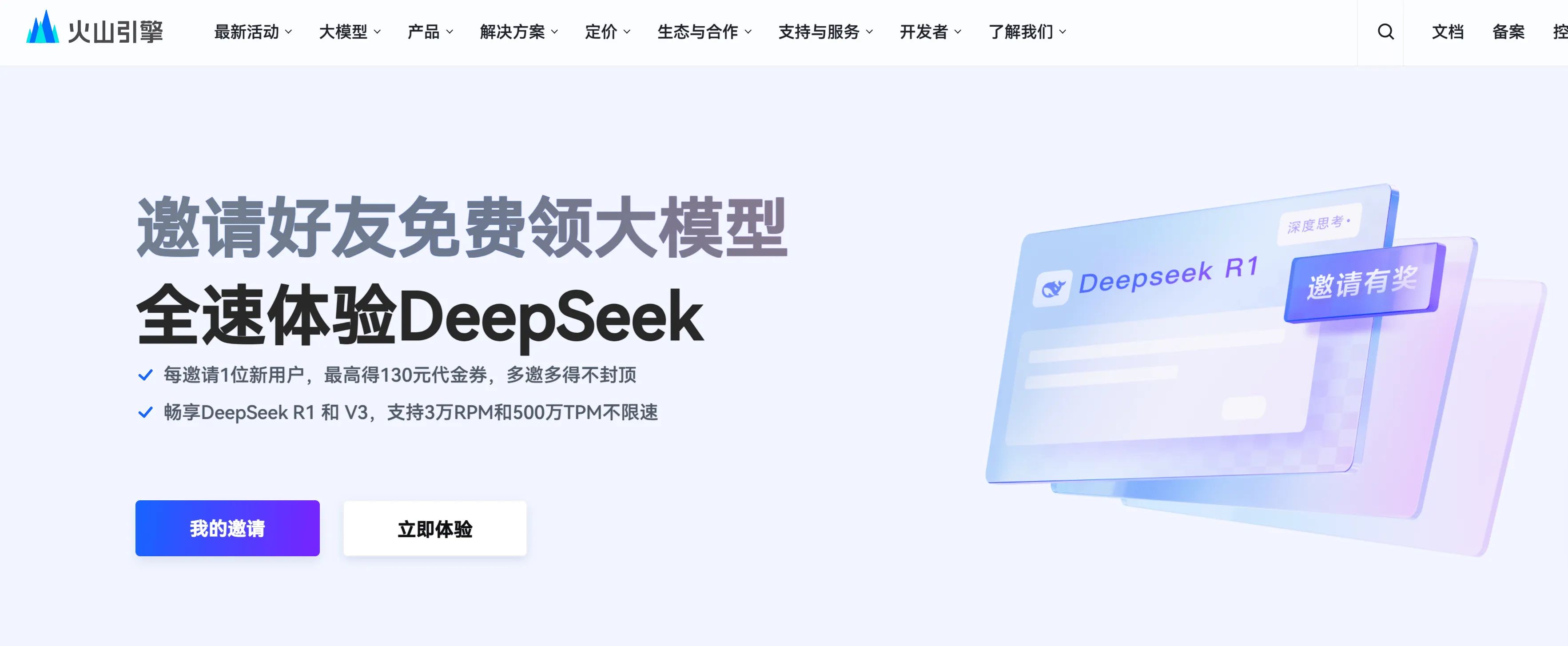
The official DeepSeek API keeps showing “system busy” because each account is limited to requesting the full-featured model only once in a certain period. Similar products on the market either don’t expose the full model or also suffer from heavy throttling. Backed by ByteDance, Volcengine provides DeepSeek with 500k free tokens per model and supports 30k RPM and 5M TPM with no rate limiting, making it more stable and easier to use than many alternatives like Silicabase. Since ByteDance is a domestic platform, real-name verification is unavoidable.
Register an Account and Complete Real-Name Verification
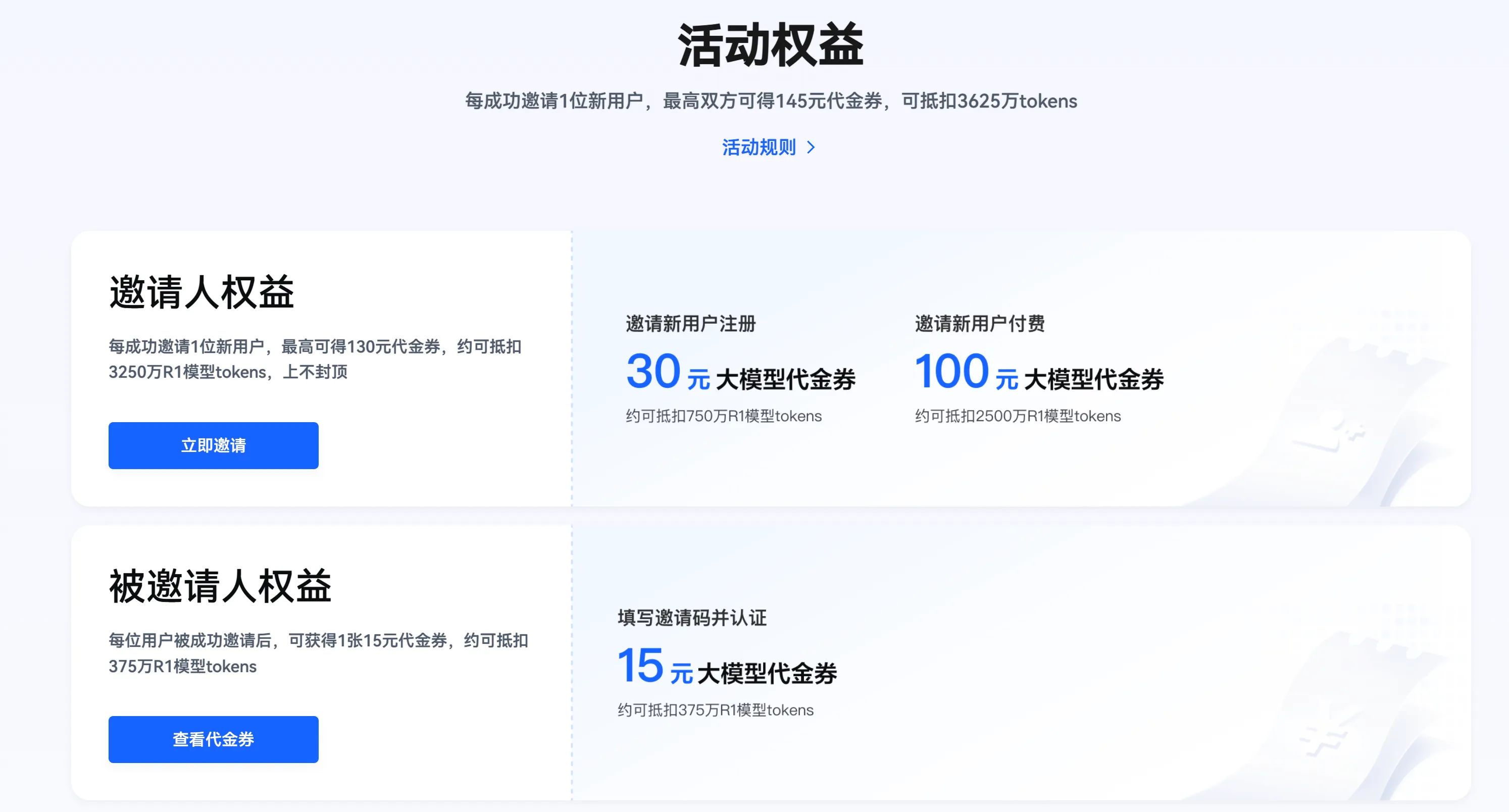
You can simply register with your phone number. New accounts currently get 500k tokens for each model plus a ¥15 voucher.
My invite link:
https://www.volcengine.com/activity/deepseek?utm_term=202502dsinvite&ac=DSASUQY5&rc=8X5LJV7Y
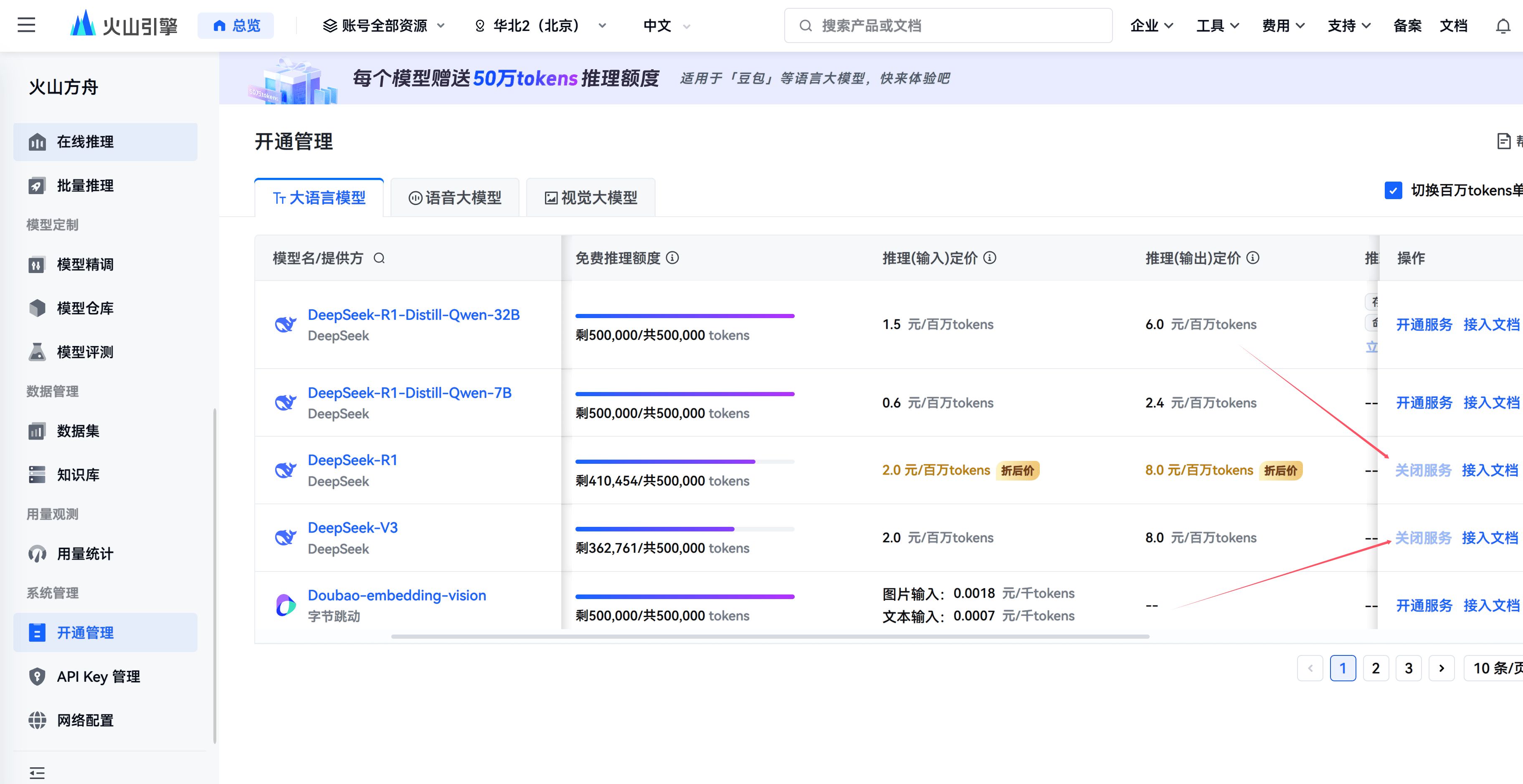
Enable the Model
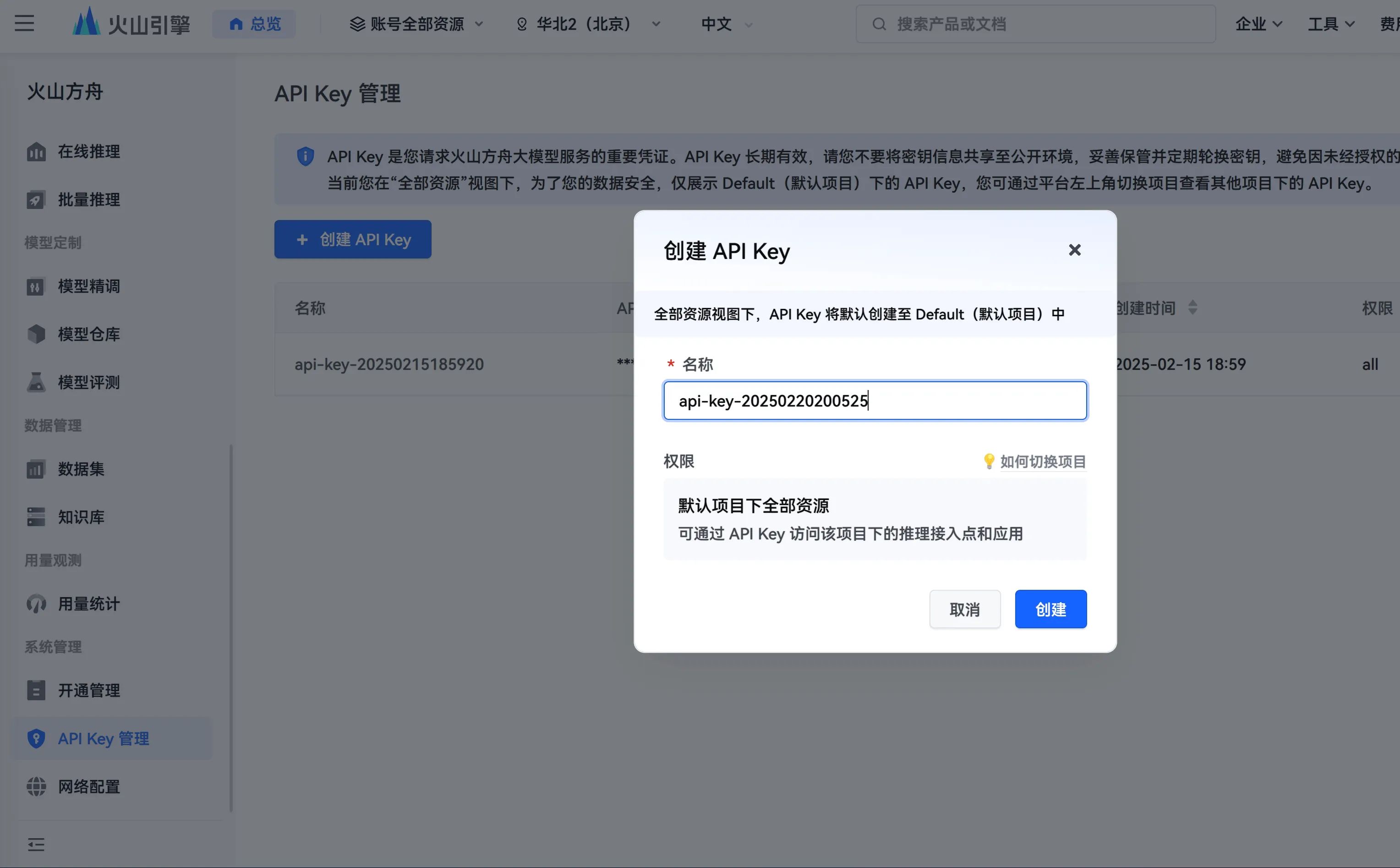
Create an API Key
You need to note it down and keep it safe.
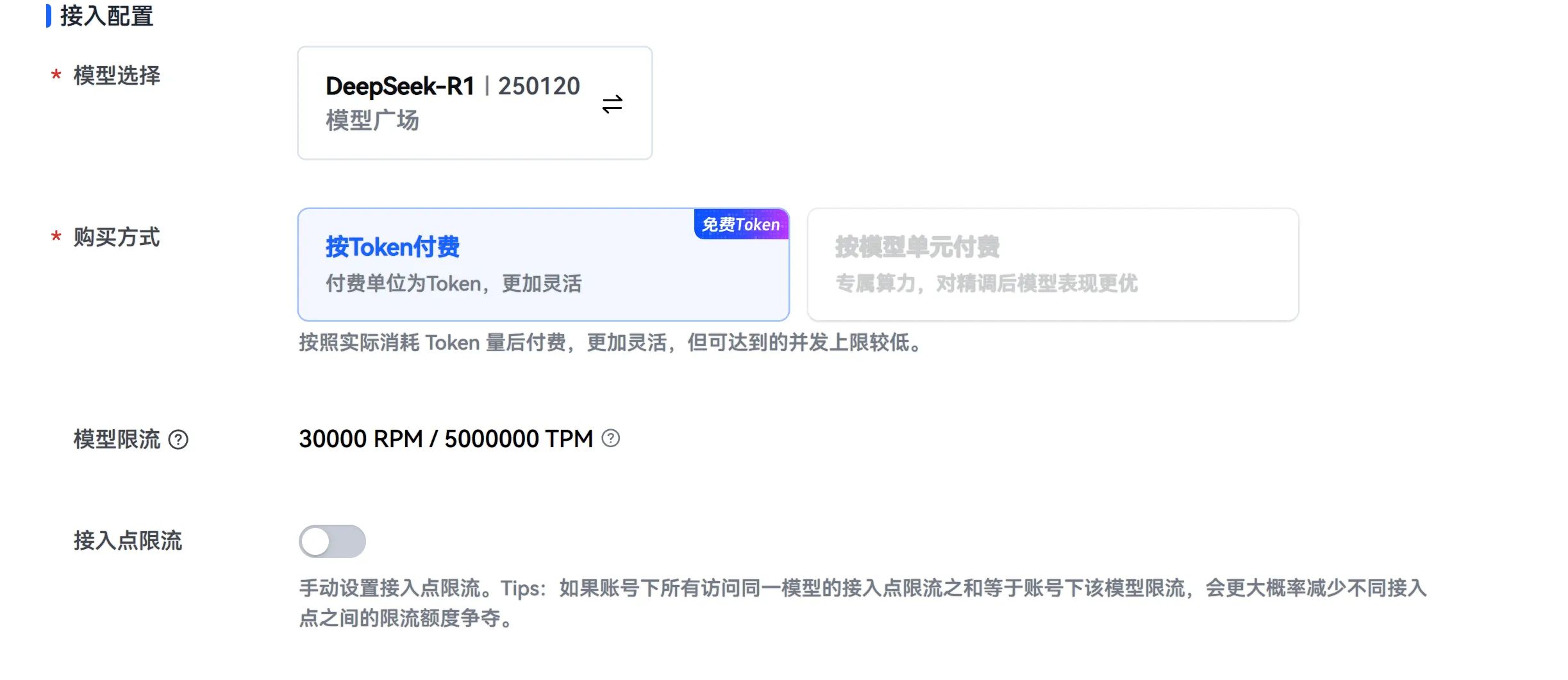
Create an Inference Endpoint
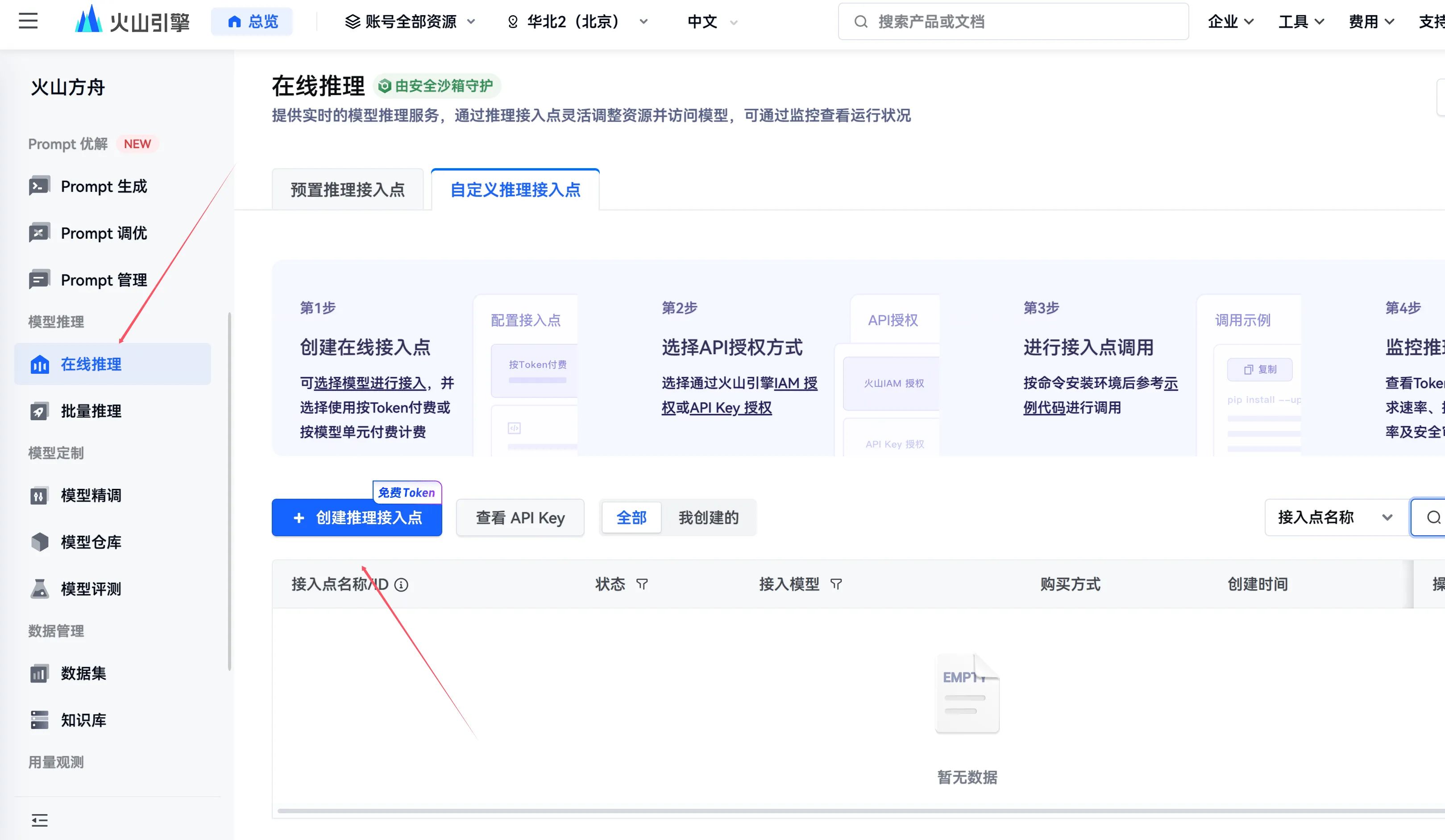
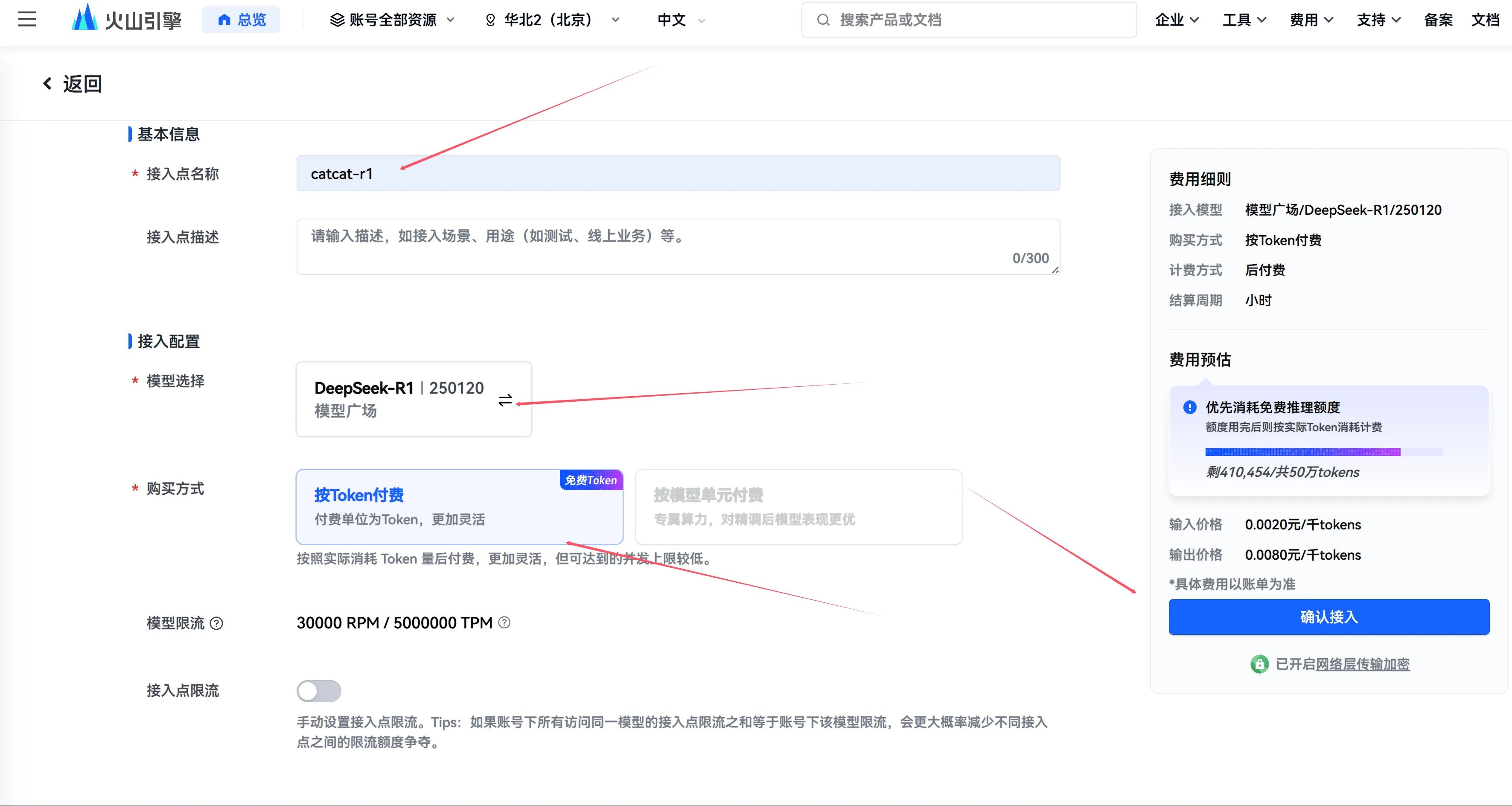
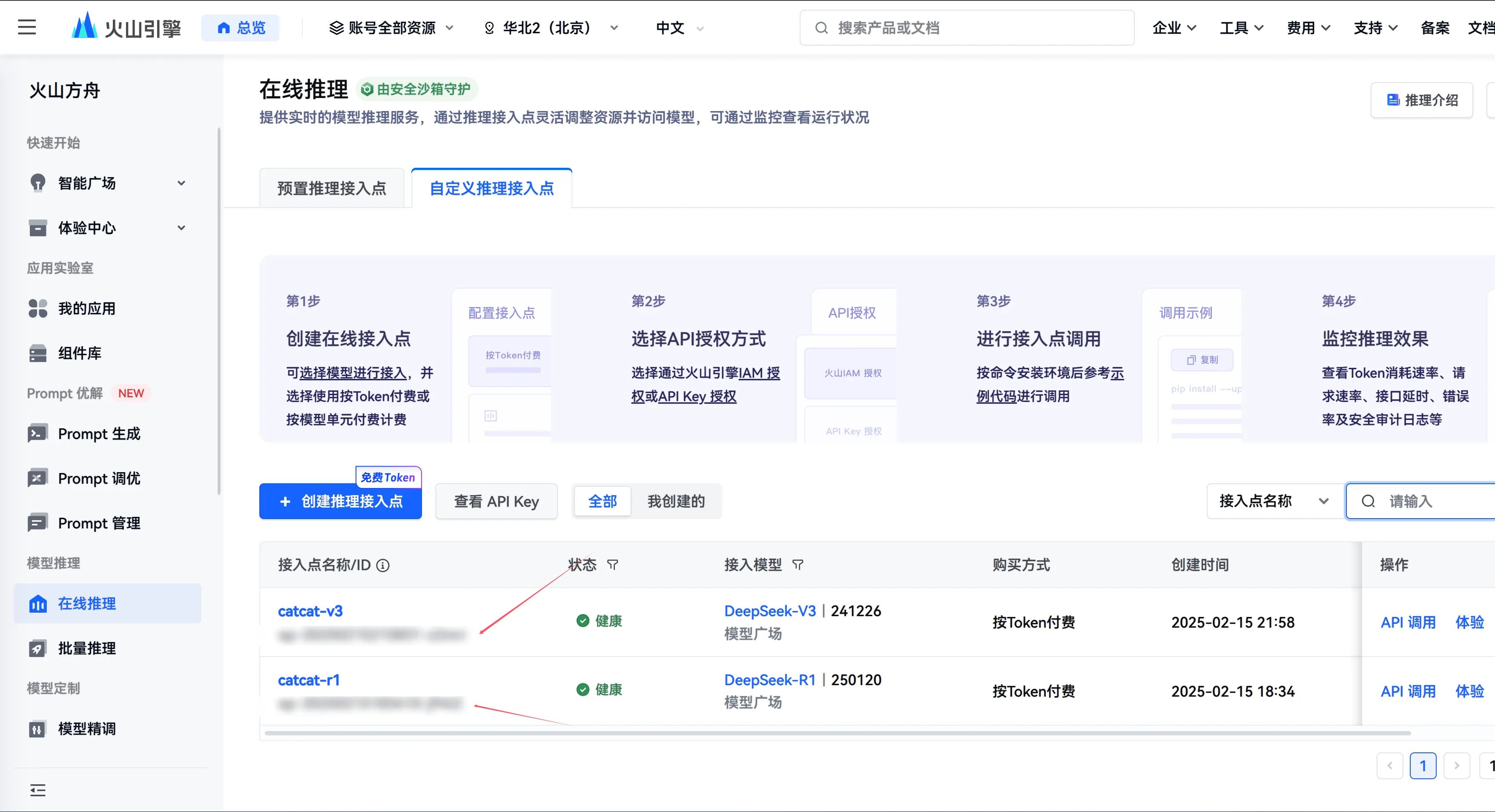
This gives you your endpoint ID, which is used to call the model.
Call from a Desktop Client
You can use the open-source client Cherry Studio, which provides Windows/Mac/Linux builds.
Project page: Cherry Studio - 全能的AI助手
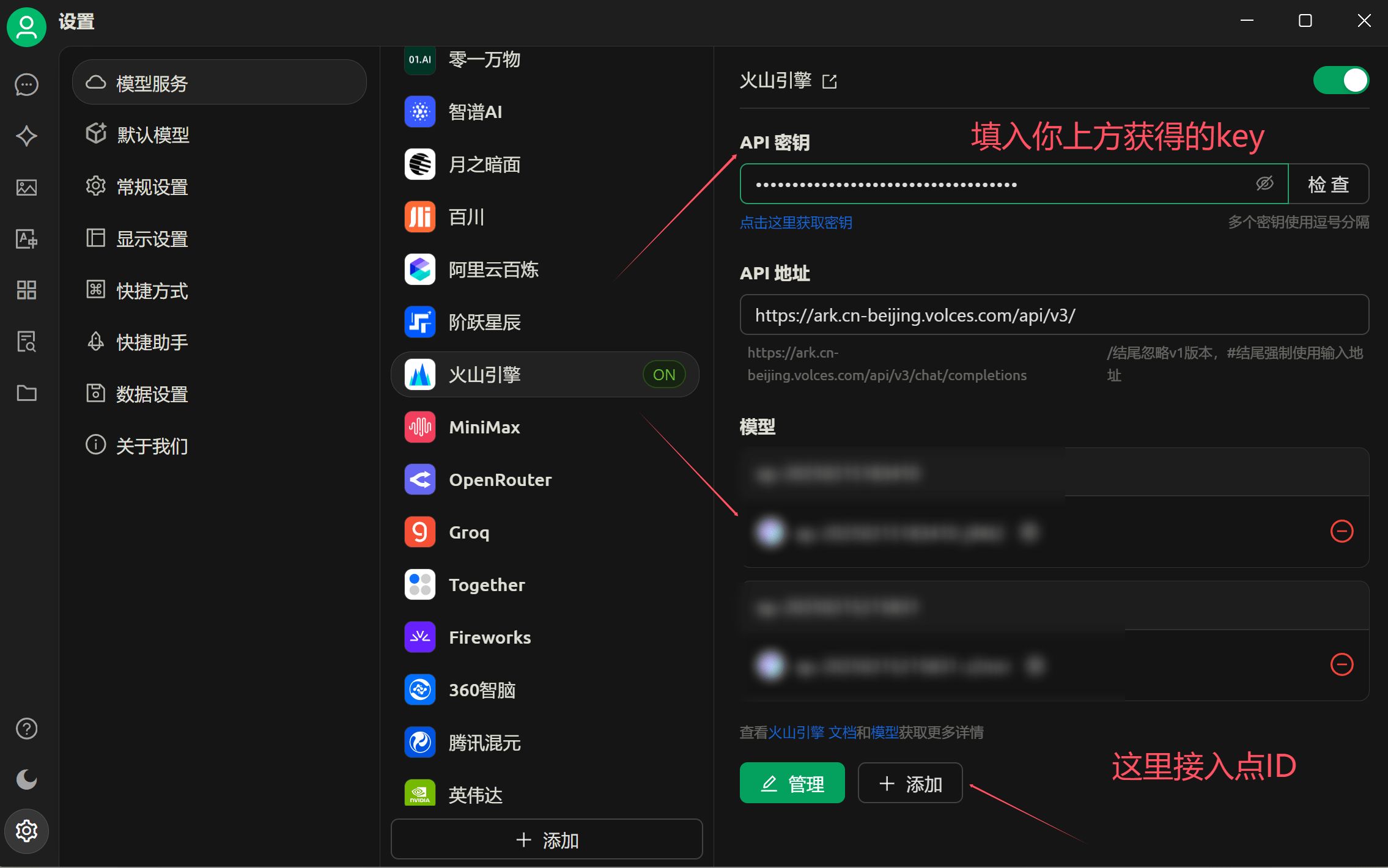
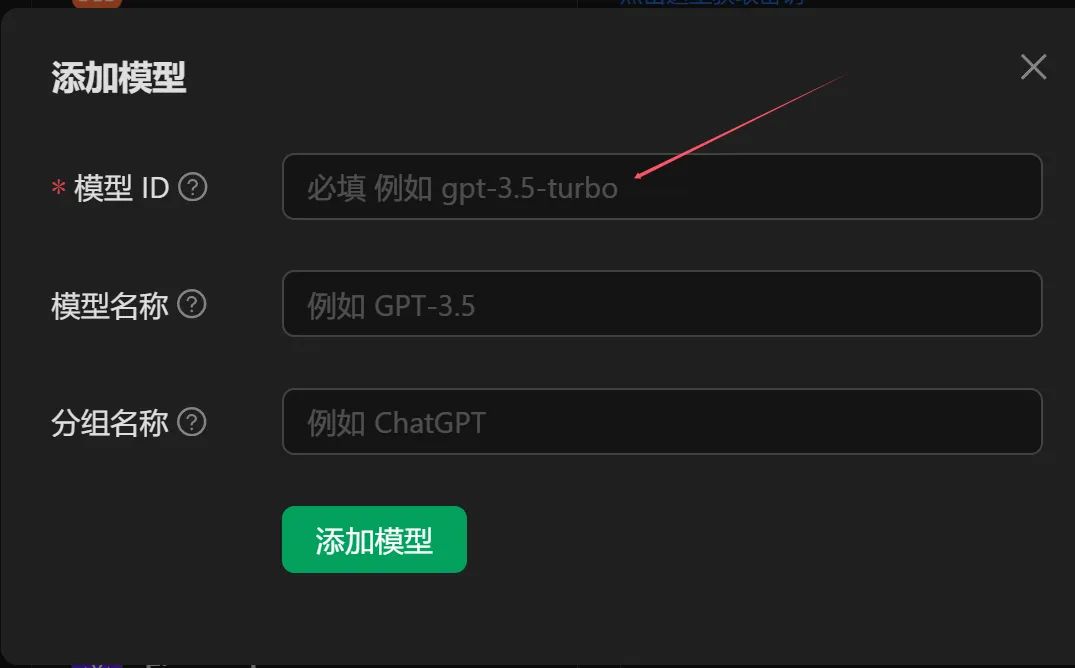
If you want to use it on your phone, you can consider ChatBox.
500k tokens can actually last quite a while, and with the extra ¥15 voucher, once you run out you can buy another 500k for just ¥1 (current pricing is the same as the official API).
Web Search
You can use the open-source client Cherry Studio, which provides Windows/Mac/Linux builds.
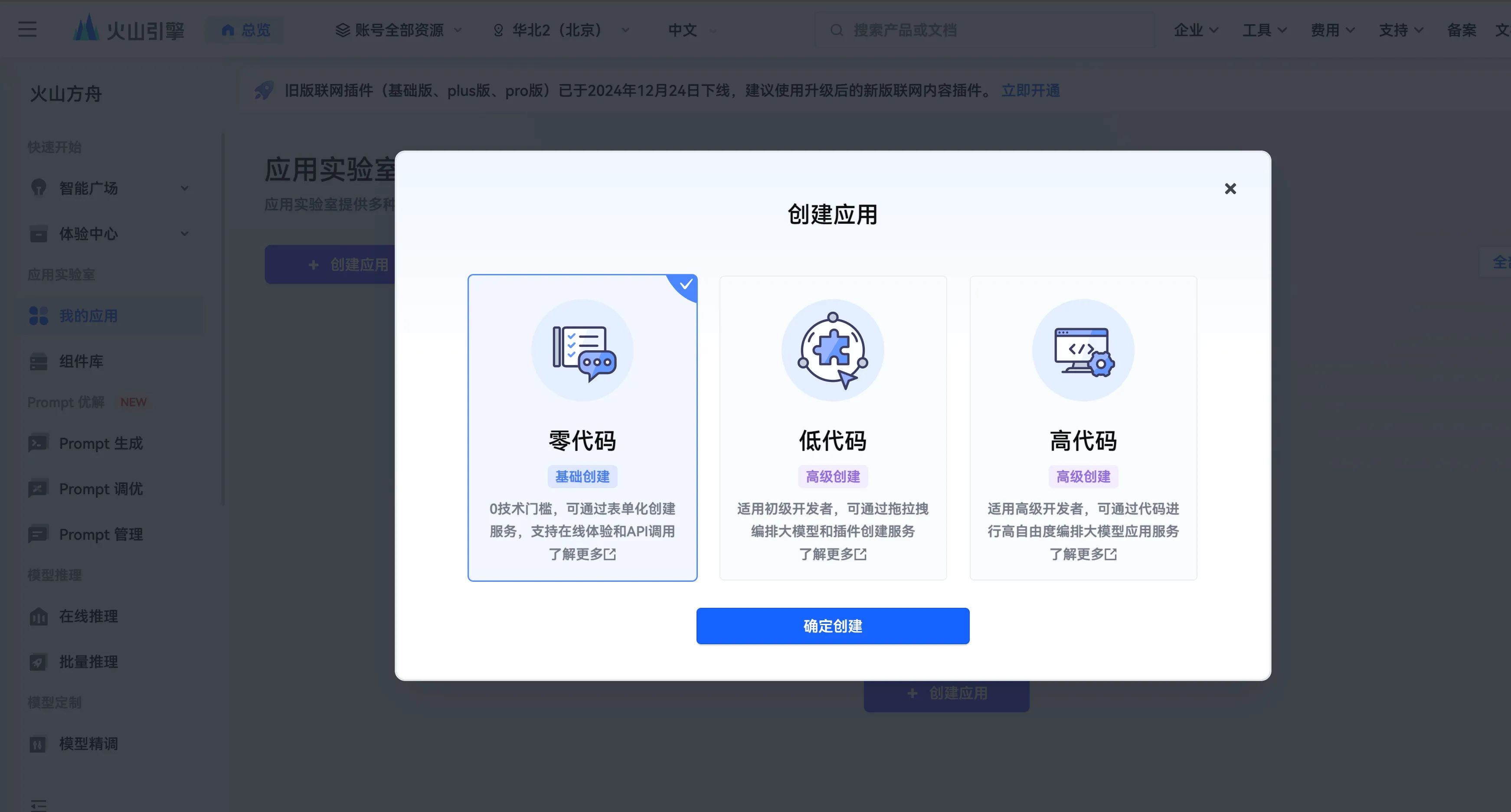
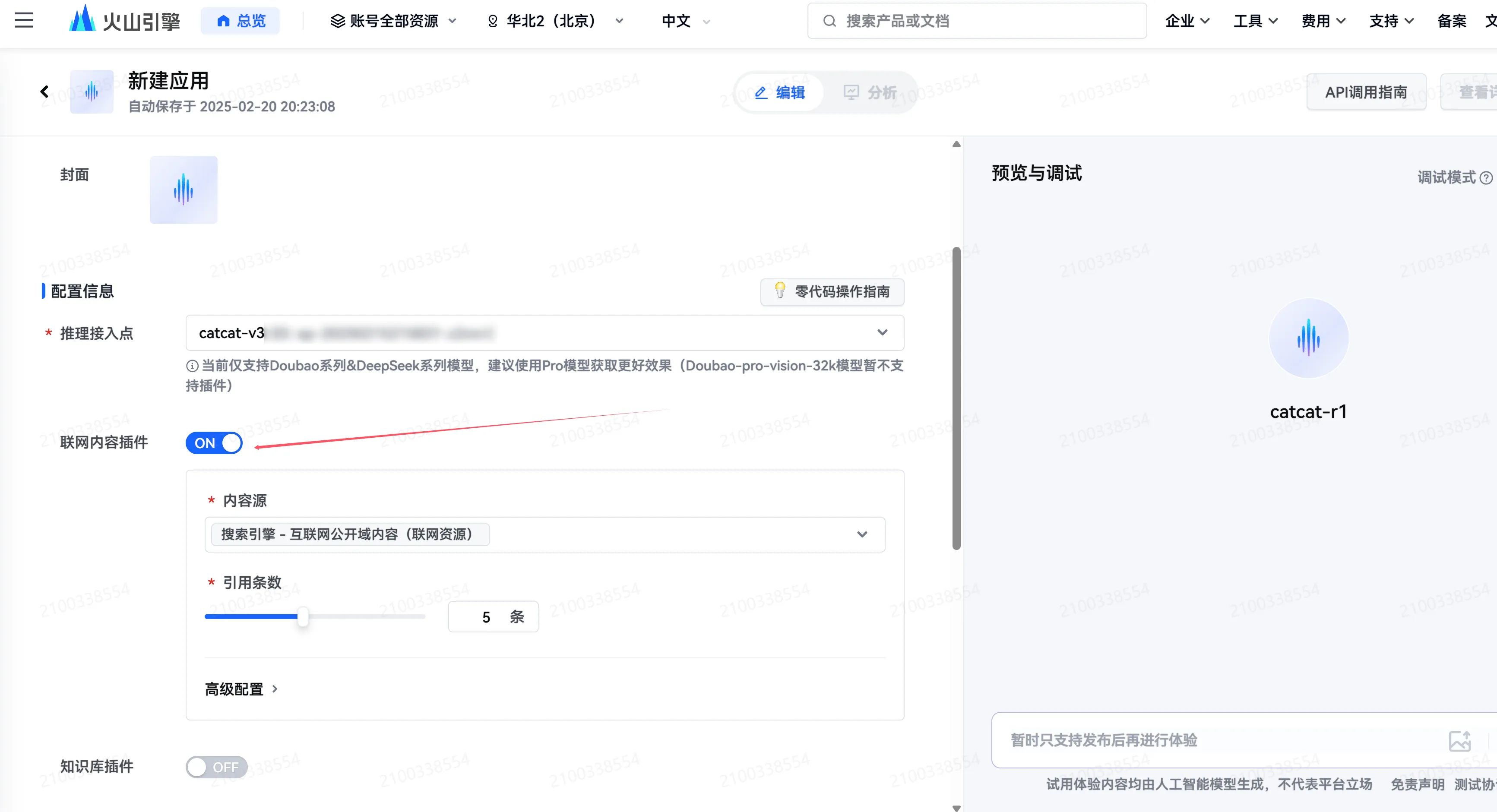
First register on Volcengine, then click Create Application → No-code → Single Chat. The application name is arbitrary. For the endpoint, select DS-R1 (if it doesn’t exist, create one). Then select the web search model plugin (if it’s missing, enable it first).
If this is your first time, the web content plugin needs to be enabled—just follow the prompt to turn it on.
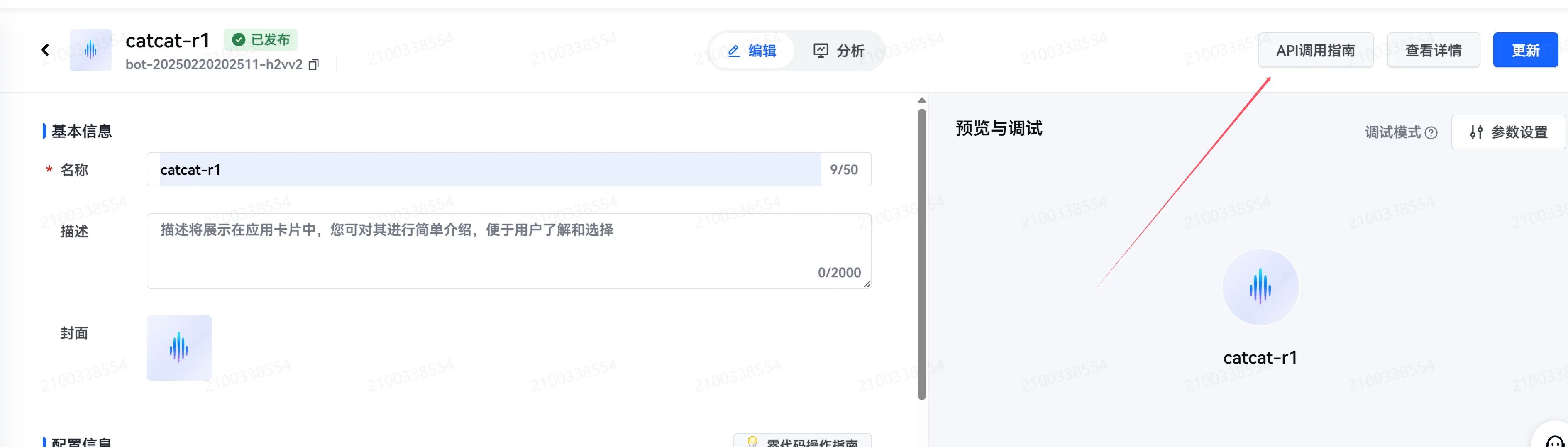
After creation, click API Call Guide in the upper-right corner, then click Select API and Copy.
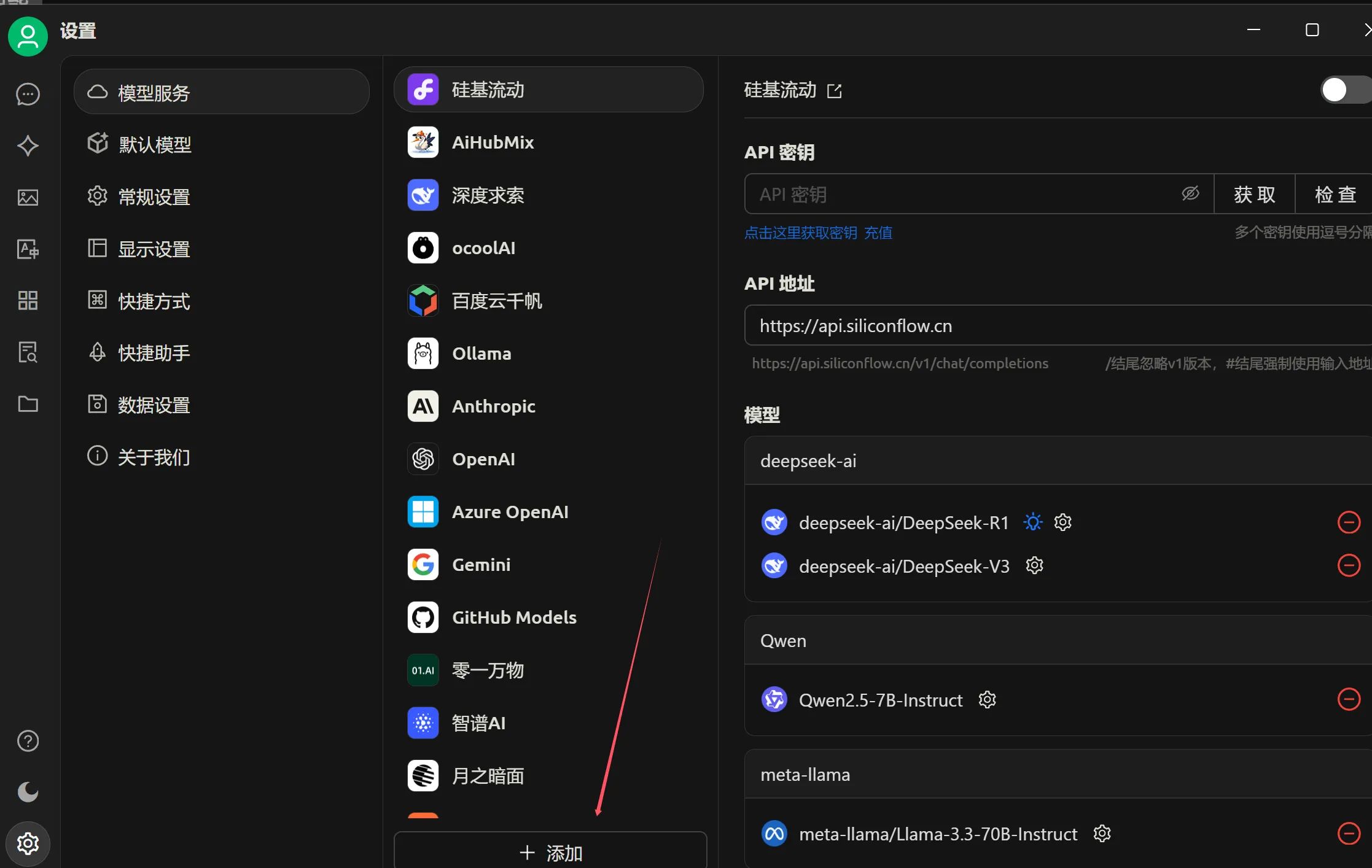
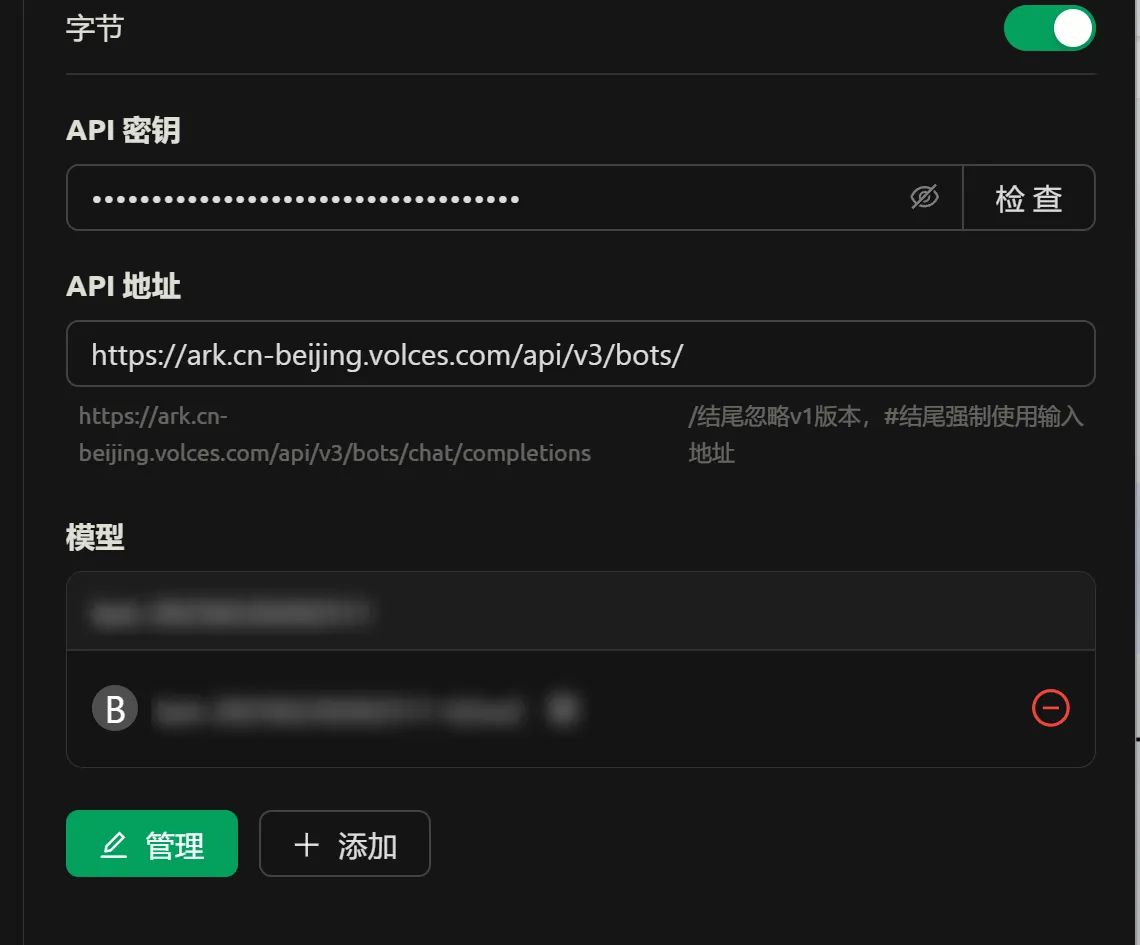
Go back to Cherry Studio. In Models, click Add, choose OpenAI as the provider, and set any name you like. Then paste the API key. For the API base URL, use:
https://ark.cn-beijing.volces.com/api/v3/bots/
Then manually add a model—click Add. For Model ID, fill in the ID of the bot application you created, in the format bot-xxx. You can find it in the upper-left corner in the screenshot above. The display name is arbitrary.
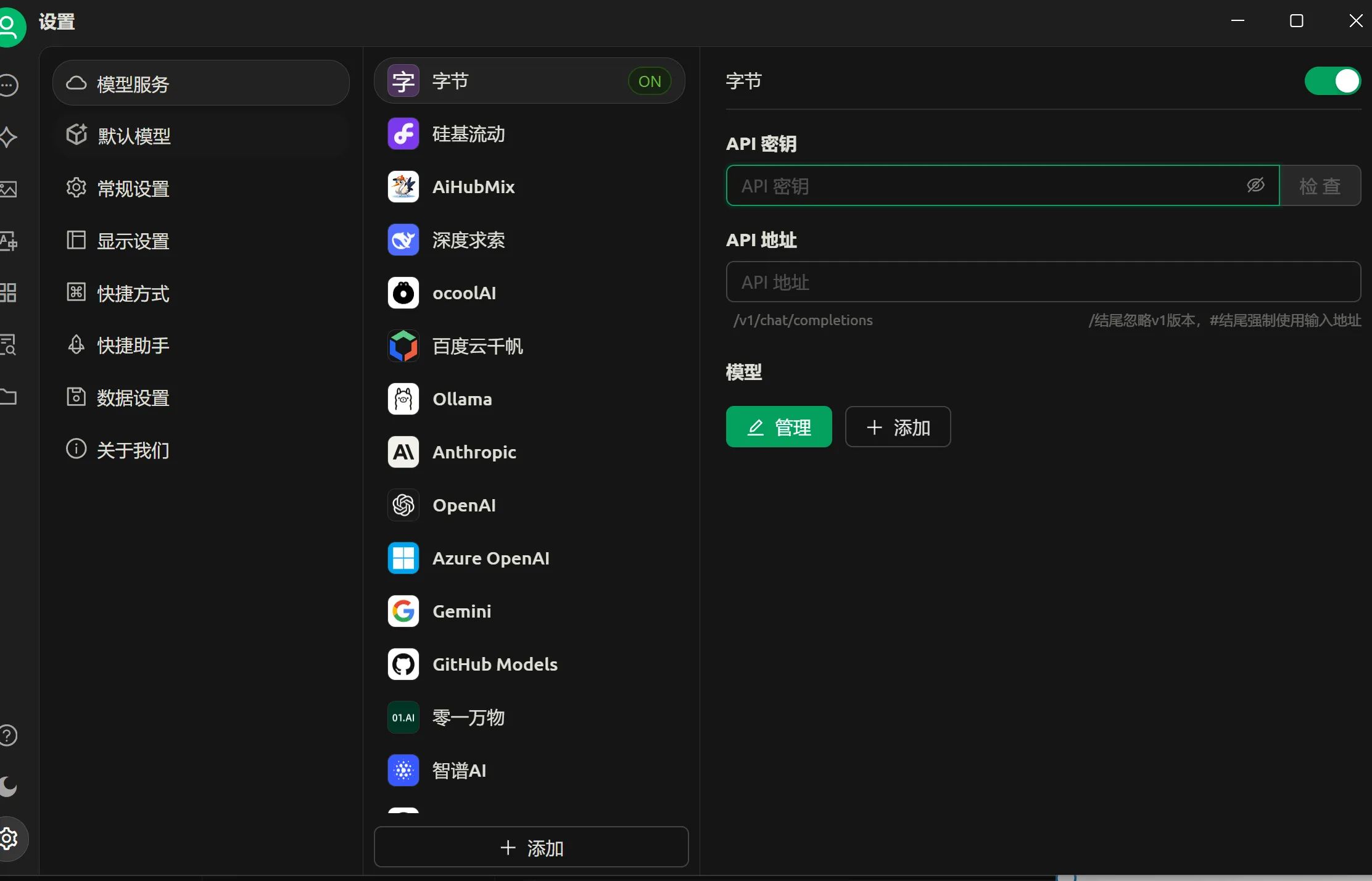
The model ID is exactly the Bot ID.

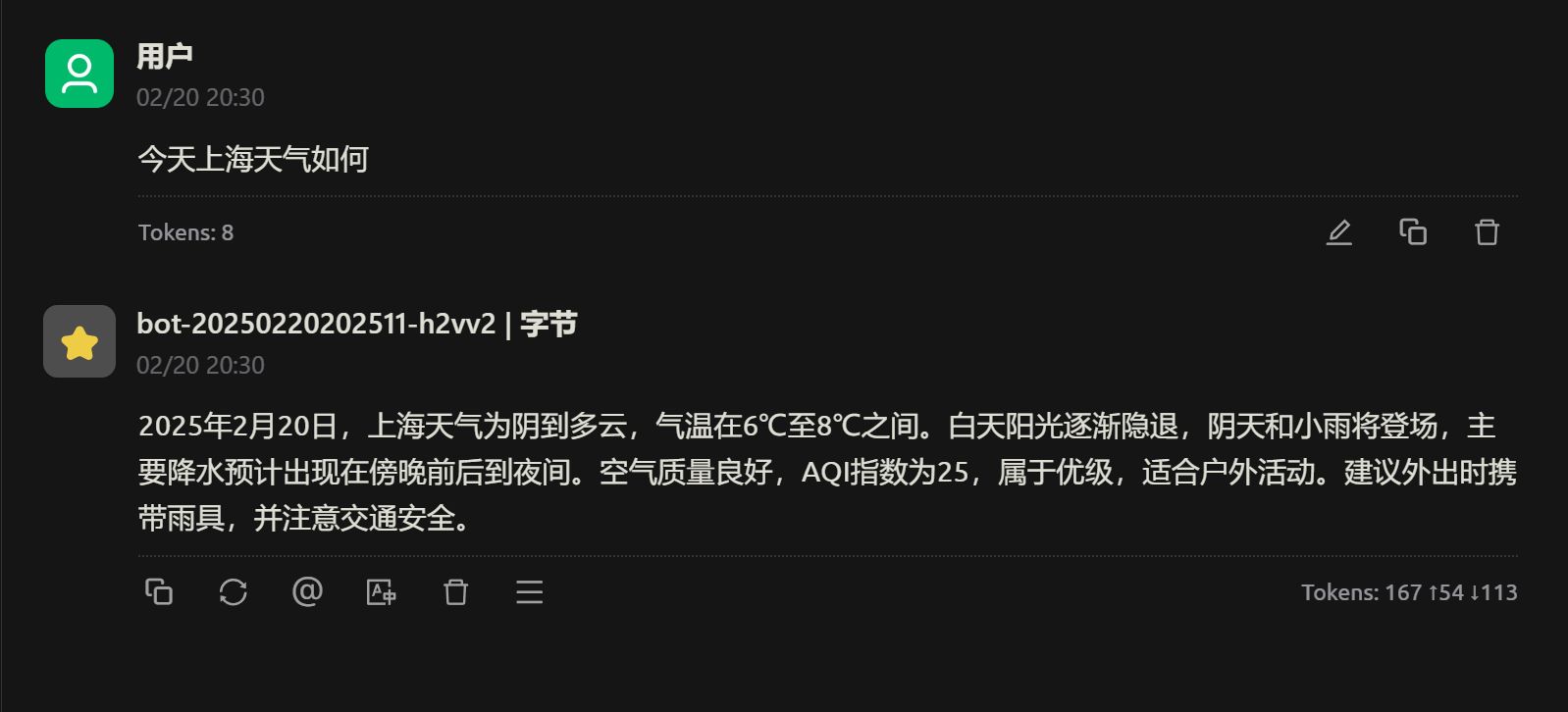
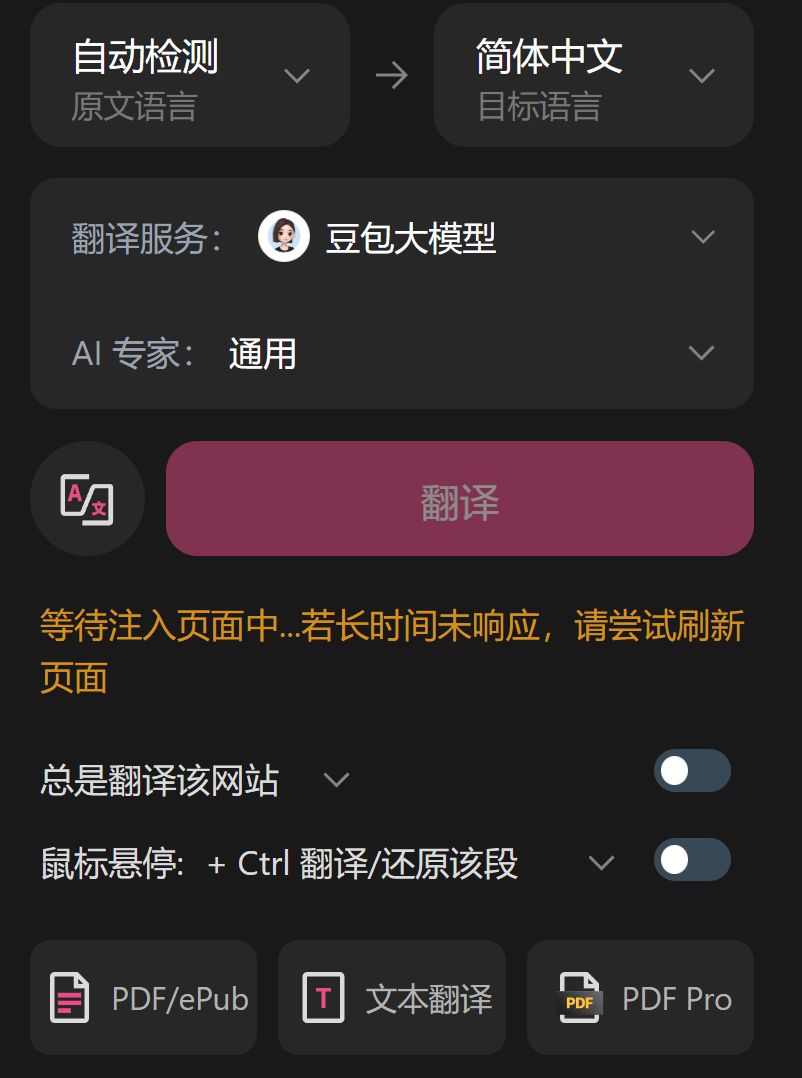
Hooking It Up for Translation
Similarly, since ByteDance’s cards are plentiful and TPM is high, it’s very suitable for powering translation—just note this may consume more tokens.
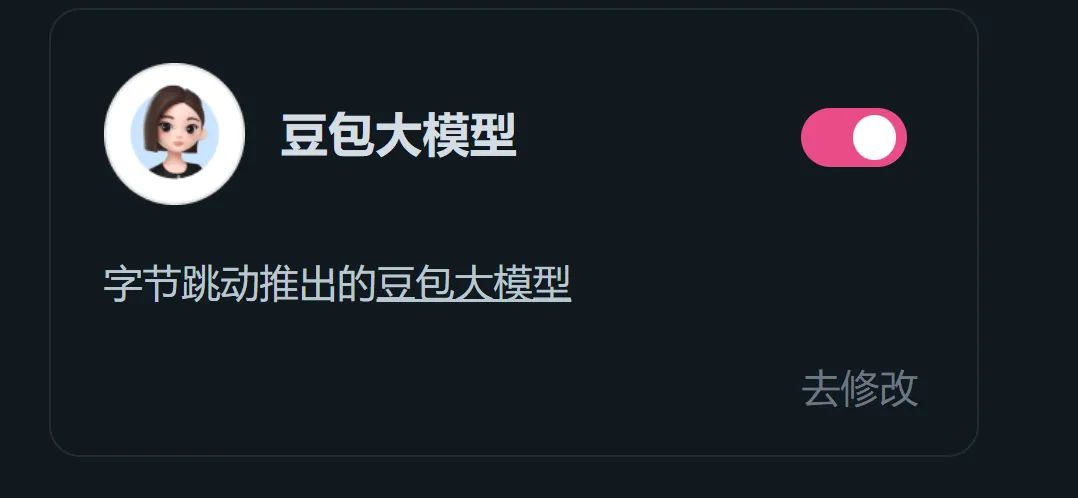
In the settings, find 豆包大模型.
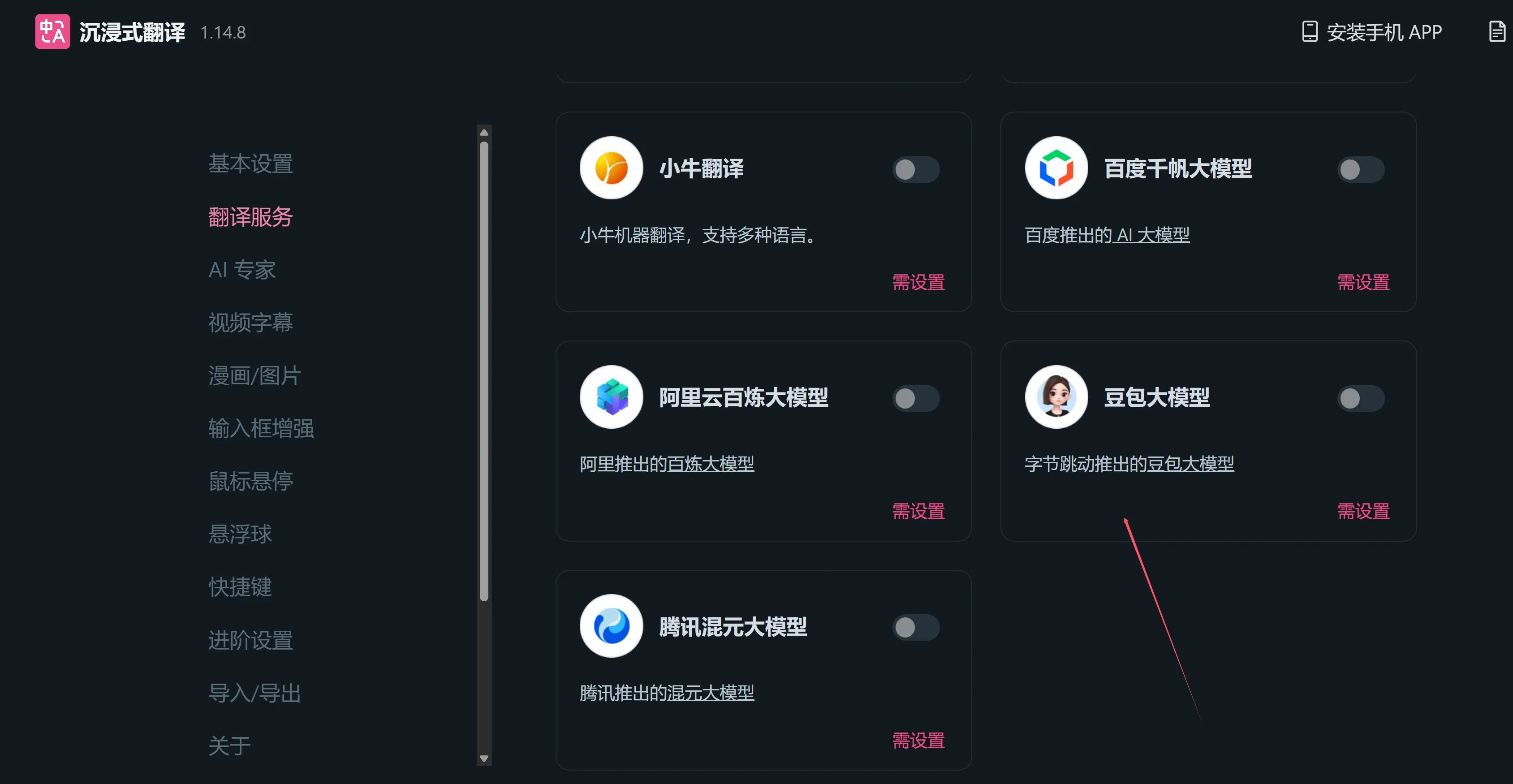
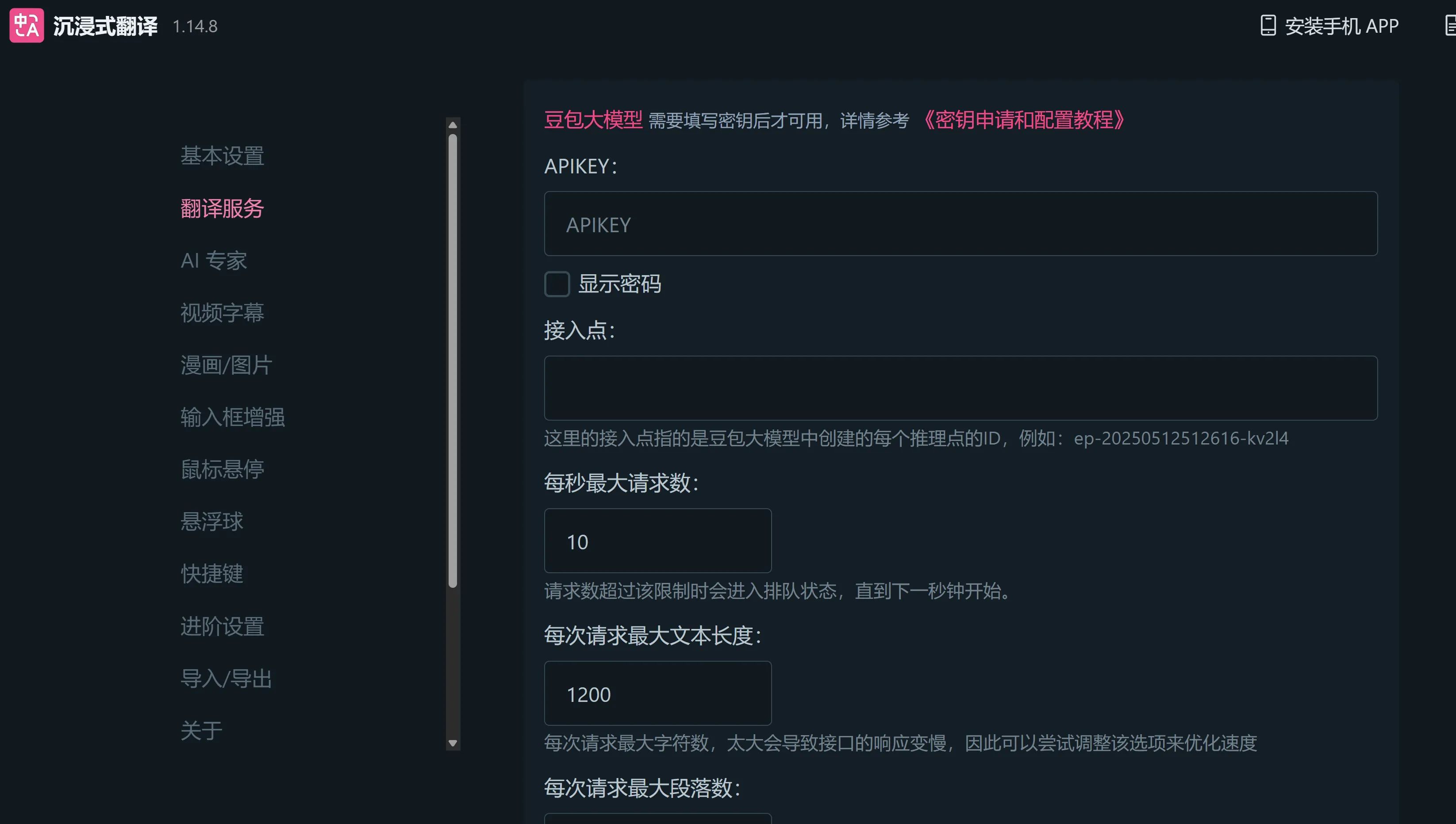
Fill in the API and endpoint just like above, but note that here you must use the endpoint ID for DeepSeek-V3, which is the fastest and gives the best results.

Click Test, and once validation passes, you can start calling it.