
Deploy fontInAss Subtitle Font Processing Service with Docker Compose
Have you ever encountered this situation: when playing anime or movies with beautiful ASS subtitles on Emby or Jellyfin, the subtitles display in the system default font, completely losing their original visual effect? This happens because the subtitle files use special fonts (such as FangZheng fonts, Source Han fonts, etc.) that don’t exist on the device, causing the player to fall back to default fonts.
fontInAss is an open-source project created specifically to solve this problem. It can automatically embed the fonts required by subtitles into the subtitle files, ensuring that special font effects display correctly on any device. This article will explain in detail how to deploy the fontInAss service using Docker Compose and integrate it seamlessly with Emby/Jellyfin. However, note that this project’s effectiveness depends entirely on the scale of your font library. If you only have a few fonts, it may not display properly or result in an ugly situation where some text has fonts and some doesn’t.
What is fontInAss?
fontInAss is a subtitle font subsetting and embedding tool designed specifically for Emby/Jellyfin. It intercepts player subtitle requests in real-time, extracts the fonts used in the subtitles and embeds them into ASS format subtitles, ensuring that special fonts display correctly.
Main Features
- Real-time Subtitle Processing: Automatically intercepts subtitle requests during video playback, no manual processing needed
- Font Subsetting: Extracts only the glyphs actually used in subtitles, significantly reducing file size (from 10MB compressed to 50KB)
- Dual-mode Font Support: Supports local font library + online font download (optional)
- Web UI Batch Processing: Provides a web interface for batch processing subtitle files
- Format Conversion: Automatically converts SRT subtitles to ASS format and embeds fonts
- Smart Matching: Uses scoring algorithm to intelligently match font names, weight, italic, and other attributes
How It Works
Original ASS Subtitle (100KB)├─ Subtitle text: "This is a subtitle"└─ Font declaration: Font: Source Han Sans CN Bold
↓ fontInAss Processing Flow
1. Intercept subtitle request2. Analyze all characters used in subtitle3. Extract corresponding glyphs from font library4. Compress font (10MB → 50KB)5. UUEncode and embed into subtitle
↓
Processed ASS Subtitle (150KB)├─ Subtitle text: "This is a subtitle"├─ Font declaration: Font: Source Han Sans CN Bold└─ [Fonts] section: <embedded font data>Architecture Design
This article uses a dual-track deployment approach to ensure the existing Emby service is not affected:
Path A (Original method, unchanged):Client → http://localhost:8096 → Emby Server
Path B (New subtitle enhancement method):Client → HTTPS (443) → Nginx Reverse Proxy ↓ Internal Port 8011 → fontInAss Container ↓ http://localhost:8096 → Emby ServerAdvantages:
- ✅ Original Emby access method completely unaffected
- ✅ fontInAss as an optional enhancement feature
- ✅ Both access methods coexist, switch anytime
Component Description
| Component | Description |
|---|---|
| fontInAss Container | Uses riderlty/fontinass:noproxy image, listens on port 8011 |
| Nginx Reverse Proxy | Handles SSL termination, subtitle request interception, WebSocket proxy |
| Local Font Library | Stores TTF/TTC/OTF font files, supports automatic monitoring and scanning |
| Emby Server | Existing Emby service, no configuration changes needed |
Deployment Preparation
System Requirements
- Linux server (Debian/Ubuntu recommended)
- Docker and Docker Compose
- Nginx (for reverse proxy)
- Running Emby/Jellyfin server
Recommended Configuration
- Local font library (optional but strongly recommended, avoids network dependency)
- Domain name and SSL certificate (required for production environment)
- At least 2GB memory and 10GB disk space
TIPIf you don’t have a font library, you can first deploy with online font mode and add local fonts later. This article uses local font library mode as an example.
Deployment Steps
1. Create Working Directory
# Create project directorymkdir -p /root/docker_yaml/fontInAsscd /root/docker_yaml/fontInAss
# Create necessary subdirectoriesmkdir -p fonts data logsDirectory explanation:
fonts/: Stores local font files (supports subdirectories)data/: Stores SQLite font databaselogs/: Stores runtime logs and font missing records
2. Create Docker Compose Configuration
Create docker-compose.yml file:
version: '3.8'
services: fontinass: image: riderlty/fontinass:noproxy container_name: fontinass restart: unless-stopped ports: - "127.0.0.1:8011:8011" # Listen locally only, not exposed to external network environment: # Emby server address (container accessing host) EMBY_SERVER_URL: "http://host.docker.internal:8096" # Web font rendering support EMBY_WEB_EMBED_FONT: "True" # Log level LOG_LEVEL: "INFO" # Disable online fonts, use local font library only DISABLE_ONLINE_FONTS: "True" # Font cache configuration FONT_CACHE_SIZE: "50" FONT_CACHE_TTL: "60" # Subtitle cache configuration SUB_CACHE_SIZE: "50" SUB_CACHE_TTL: "60" SRT_2_ASS_FORMAT: "Format: Name, Fontname, Fontsize, PrimaryColour, SecondaryColour, OutlineColour, BackColour, Bold, Italic, Underline, StrikeOut, ScaleX, ScaleY, Spacing, Angle, BorderStyle, Outline, Shadow, Alignment, MarginL, MarginR, MarginV, Encoding" SRT_2_ASS_STYLE: "Style: Default,楷体,20,&H03FFFFFF,&H00FFFFFF,&H00000000,&H02000000,-1,0,0,0,100,100,0,0,1,2,0,2,10,10,10,1" volumes: - ./fonts:/fonts # Font directory - ./data:/data # Database directory - ./logs:/logs # Log directory extra_hosts: # Allow container to access host's Emby service - "host.docker.internal:host-gateway"The DISABLE_ONLINE_FONTS: "True" configuration disables online font downloads and uses local font library exclusively. If you want to automatically download fonts from the network when local fonts are missing, you can set it to "False".
3. Configure Nginx Reverse Proxy
Create Nginx configuration file /etc/nginx/sites-available/fontinass:
This is my nginx configuration, for reference only.
# Upstream server configurationupstream fontinass_backend { server 127.0.0.1:8011; keepalive 32;}
upstream emby_backend { server 127.0.0.1:8096; keepalive 32;}
# HTTP redirect to HTTPSserver { listen 80; listen [::]:80; server_name your-domain.com;
# Redirect all HTTP requests to HTTPS return 301 https://$host$request_uri;}
# HTTPS main configurationserver { listen 443 ssl; listen [::]:443 ssl; http2 on; server_name your-domain.com;
# SSL certificate configuration ssl_certificate /path/to/cert.pem; ssl_certificate_key /path/to/key.pem;
# SSL optimization configuration ssl_protocols TLSv1.2 TLSv1.3; ssl_ciphers 'ECDHE-ECDSA-AES128-GCM-SHA256:ECDHE-RSA-AES128-GCM-SHA256:ECDHE-ECDSA-AES256-GCM-SHA384:ECDHE-RSA-AES256-GCM-SHA384'; ssl_prefer_server_ciphers on; ssl_session_cache shared:SSL:10m; ssl_session_timeout 10m;
# Security headers add_header Strict-Transport-Security "max-age=31536000; includeSubDomains" always; add_header X-Content-Type-Options "nosniff" always; add_header X-Frame-Options "SAMEORIGIN" always;
# Logging access_log /var/log/nginx/fontinass.access.log; error_log /var/log/nginx/fontinass.error.log;
# Client upload size limit client_max_body_size 100M;
# WebSocket support (forward directly to Emby) location ~ /(socket|embywebsocket) { proxy_pass http://emby_backend; proxy_http_version 1.1; proxy_set_header Upgrade $http_upgrade; proxy_set_header Connection "upgrade"; proxy_set_header Host $host; proxy_set_header X-Real-IP $remote_addr; proxy_set_header X-Forwarded-For $proxy_add_x_forwarded_for; proxy_set_header X-Forwarded-Proto $scheme; proxy_read_timeout 86400; }
# Subtitle file interception (forward to fontInAss for processing) location ~* /videos/(.*)/Subtitles/(.*)/(Stream\.ass|Stream\.ssa|Stream\.srt|Stream\.)$ { proxy_pass http://fontinass_backend; proxy_http_version 1.1; proxy_set_header Host $host; proxy_set_header X-Real-IP $remote_addr; proxy_set_header X-Forwarded-For $proxy_add_x_forwarded_for; proxy_set_header X-Forwarded-Proto $scheme; proxy_read_timeout 300; proxy_connect_timeout 75;
# Gzip compression (for subtitle files) gzip on; gzip_comp_level 6; gzip_types text/x-ssa text/plain application/x-subrip; }
# FeiNiu/Jellyfin subtitle API (forward to fontInAss) location ~ /v/api/v1/subtitle/dl/(.*) { proxy_pass http://fontinass_backend; proxy_http_version 1.1; proxy_set_header Host $host; proxy_set_header X-Real-IP $remote_addr; proxy_set_header X-Forwarded-For $proxy_add_x_forwarded_for; proxy_set_header X-Forwarded-Proto $scheme; }
# JS file modification (Web font rendering support) location ~ /web/modules/htmlvideoplayer/plugin\.js { proxy_pass http://fontinass_backend; proxy_http_version 1.1; proxy_set_header Host $host; proxy_set_header X-Real-IP $remote_addr; proxy_cache_bypass 1; add_header Content-Type "application/javascript" always; }
location ~ /web/bower_components/(.*)/subtitles-octopus\.js { proxy_pass http://fontinass_backend; proxy_http_version 1.1; proxy_set_header Host $host; proxy_set_header X-Real-IP $remote_addr; proxy_cache_bypass 1; add_header Content-Type "application/javascript" always; }
# fontInAss Web UI and API location ~ ^/(subset|api|color|fontinass)/ { proxy_pass http://fontinass_backend; proxy_http_version 1.1; proxy_set_header Host $host; proxy_set_header X-Real-IP $remote_addr; proxy_set_header X-Forwarded-For $proxy_add_x_forwarded_for; proxy_set_header X-Forwarded-Proto $scheme; }
# Default forward to Emby server location / { proxy_pass http://emby_backend; proxy_http_version 1.1; proxy_set_header Host $host; proxy_set_header X-Real-IP $remote_addr; proxy_set_header X-Forwarded-For $proxy_add_x_forwarded_for; proxy_set_header X-Forwarded-Proto $scheme; proxy_set_header X-Forwarded-Host $host;
# Buffer configuration proxy_buffering off; proxy_redirect off; }}Enable Nginx configuration:
# Create symlink to enable configurationln -s /etc/nginx/sites-available/fontinass /etc/nginx/sites-enabled/
# Test configurationnginx -t
# Reload Nginxsystemctl reload nginx4. Start fontInAss Service
cd /root/docker_yaml/fontInAss
# Start containerdocker compose up -d
# View logs to confirm successful startupdocker compose logs -f fontinassNormal startup log output:
🤖 INFO Local font folder:/fonts🤖 INFO Starting database and directory consistency check...🤖 INFO Monitoring:/fonts🌏 INFO Started server process [8]🌏 INFO Waiting for application startup.🌏 INFO Application startup complete.🌏 INFO Uvicorn running on http://0.0.0.0:8011
Font Library Configuration
Adding Local Fonts
fontInAss supports automatic monitoring of the fonts directory. After adding fonts, it will automatically scan and add them to the database.
Font download: https://pan.acgrip.com/
Note: The usability of this project depends entirely on the scale of your font library. If you only have a few fonts, it may not display properly or result in an ugly situation where some text has fonts and some doesn’t.
# Copy font files to font directorycp /path/to/your/*.ttf /root/docker_yaml/fontInAss/fonts/
# Or create subdirectories for organized managementmkdir -p fonts/Chinese fonts/Japanese fonts/Englishcp SourceHanSans*.ttf fonts/Chinese/Supported font formats:
.ttf(TrueType Font).ttc(TrueType Collection).otf(OpenType Font)
Font Auto-Recognition Flow
1. watchdog monitors /fonts directory in real-time2. New font discovered → Extract metadata - Font family name (familyName) - Full name (fullName) - PostScript name - Weight - Style (bold/italic)3. Add to SQLite database4. Immediately available (no container restart needed)View font statistics:
# View number of font filesfind /root/docker_yaml/fontInAss/fonts -type f \( -name "*.ttf" -o -name "*.ttc" -o -name "*.otf" \) | wc -l
# View font directory disk usagedu -sh /root/docker_yaml/fontInAss/fontsVerify Deployment
1. Check Container Status
# View container running statusdocker compose ps
# Should show fontinass container status as "Up"2. Test Local API
# Test fontInAss APIcurl -I http://localhost:8011/subset/
# Should return HTTP/1.1 200 OK
3. Test Nginx Proxy
# Test if proxy is workingcurl -I https://your-domain.com/subset/
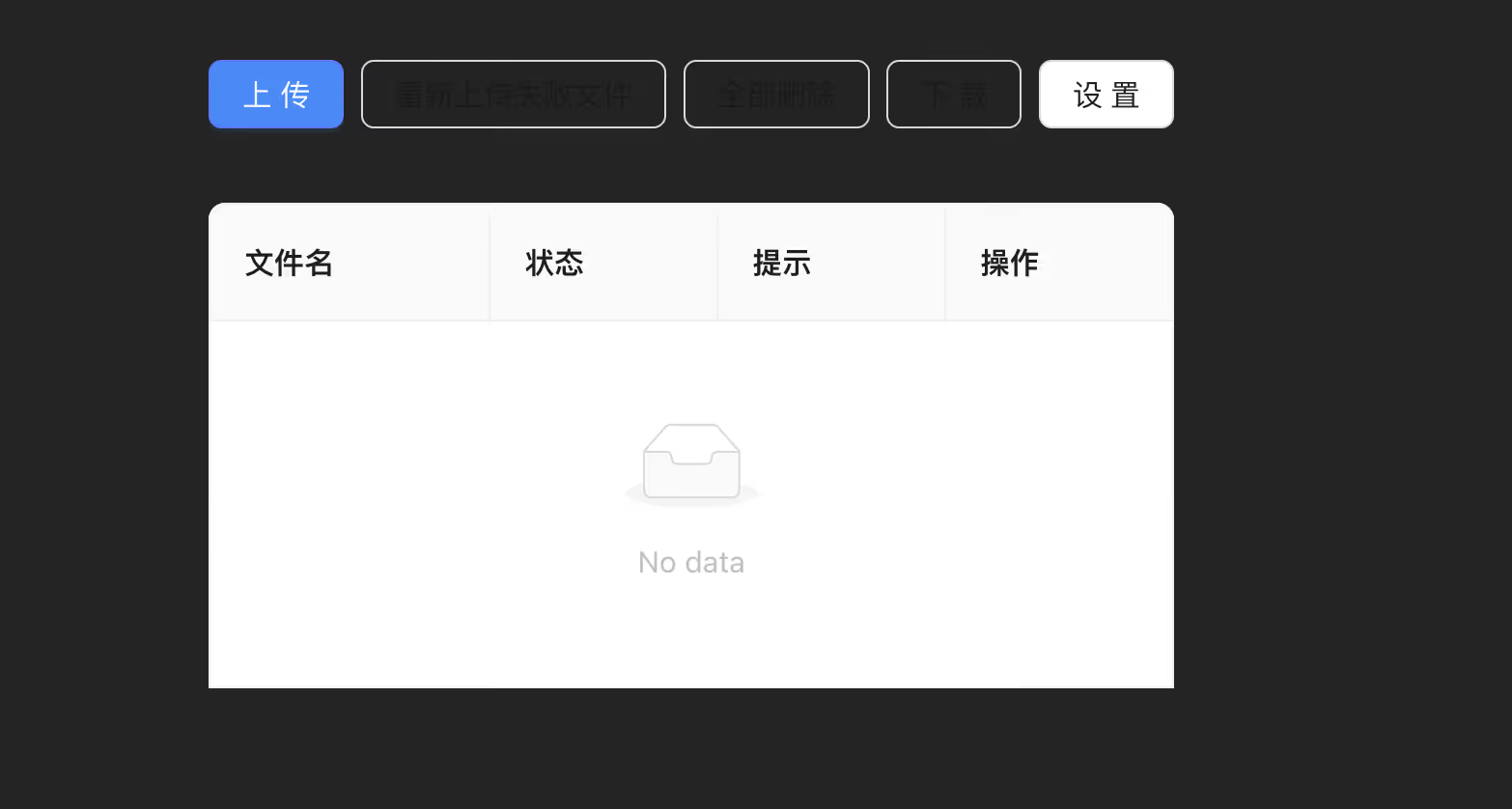
# Should return 200 OK and display fontInAss Web UI
Client Configuration
Dual-Track Access Mode
fontInAss uses a dual-track mode that doesn’t affect existing Emby usage habits:
| Access Method | Address | Purpose |
|---|---|---|
| Method A (Original) | http://localhost:8096 | Daily viewing, no subtitle processing |
| Method B (New) | https://your-domain.com | Subtitle font enhancement, automatic special font processing |
Configuration Steps
Most Emby clients support multi-server configuration:
-
Keep original server configuration (unchanged)
-
Add new server:
- Open Emby client settings
- Add new server:
https://your-domain.com - Login with the same account
-
Switch usage:
- Use the new address when subtitle font enhancement is needed
- Use the original address for daily viewing
Web UI Usage
fontInAss provides a Web UI for batch processing subtitle files.
Access Address
https://your-domain.com/subset/
Usage Flow
1. Access Web UI2. Upload subtitle files (drag and drop supported)3. Wait for processing (usually a few seconds)4. Download subtitle file with embedded fonts5. Replace original subtitle for useNOTEWeb UI is suitable for batch pre-processing subtitle libraries, or subtitle files used with non-Emby players. When watching through Emby daily, subtitles are processed automatically, no need to manually use Web UI.
FAQ
Q1: Subtitles not showing font effects?
Possible causes and solutions:
- Required font not in font library
Terminal window # View container logs to confirm missing fontsdocker compose logs -f fontinass | grep "missing"# Add missing fonts to fonts directorycp missing-font.ttf /root/docker_yaml/fontInAss/fonts/
Q2: How to switch back to online font mode?
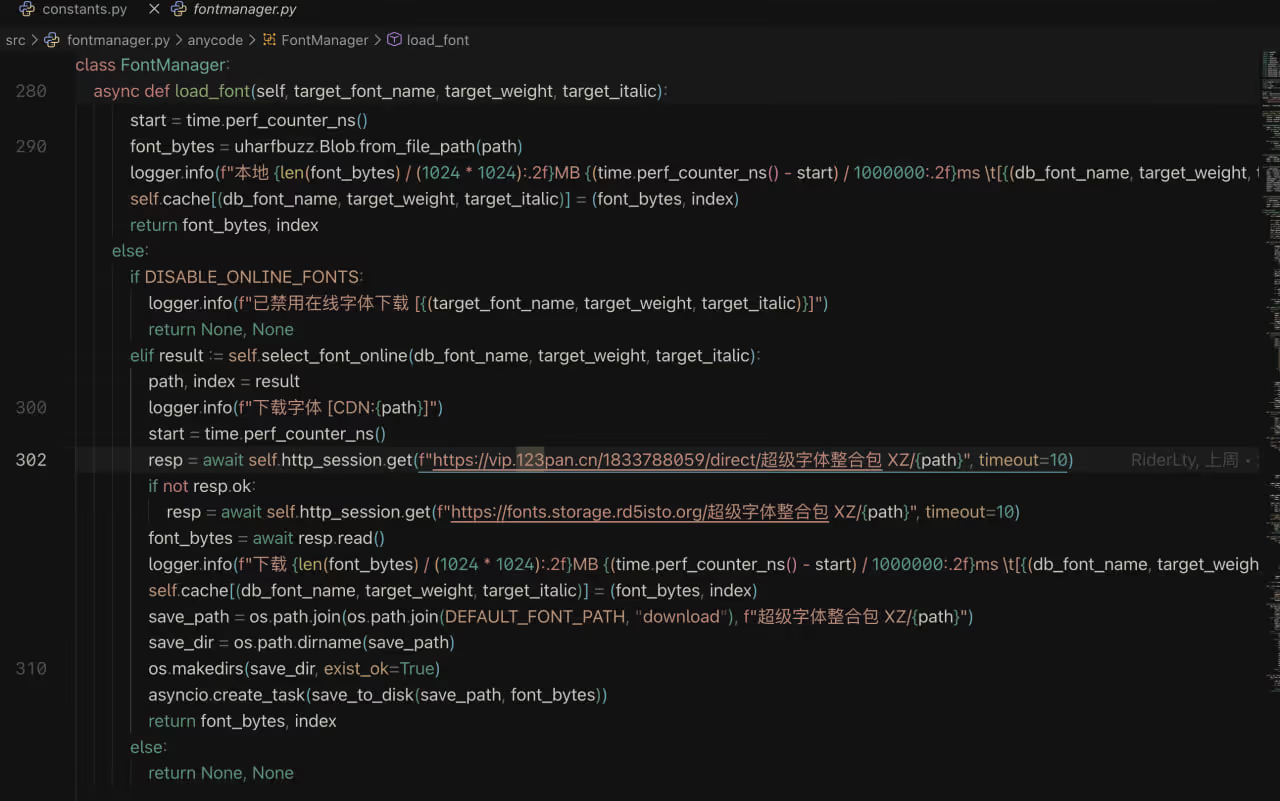
If you find your local font library is incomplete, you can enable online font downloads as a supplement:
I checked the code, it seems the deployment stores a copy of XZ’s font package on 123 cloud storage.
environment: DISABLE_ONLINE_FONTS: "True" # Disable online fonts DISABLE_ONLINE_FONTS: "False" # Enable online fontsRestart container after modification:
docker compose downdocker compose up -dOnline fonts will be automatically downloaded to the fonts/download/ directory.
Q3: How to view subtitle processing logs?
fontInAss provides detailed logging:
# View container logs in real-timedocker compose logs -f fontinass
# View missing font recordscat /root/docker_yaml/fontInAss/logs/miss_logs.txt
# View Nginx access logstail -f /var/log/nginx/fontinass.access.log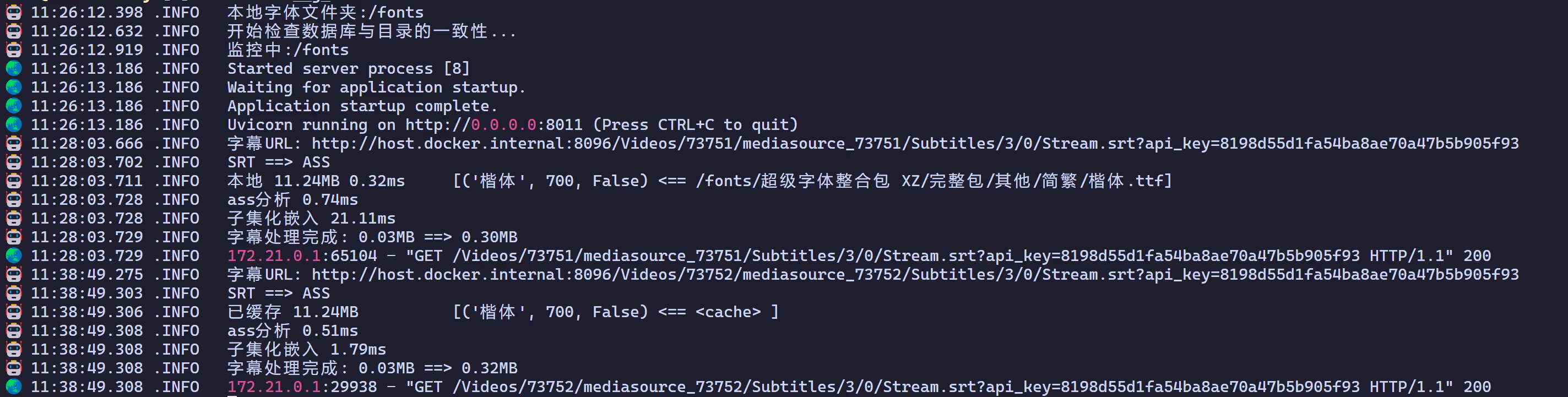
Performance Optimization
Font Cache Configuration
fontInAss uses a three-level cache strategy: Memory cache → Local database → Online database.
environment: FONT_CACHE_SIZE: "50" # Font cache count (adjust based on memory) FONT_CACHE_TTL: "60" # Font cache expiration time (minutes)
SUB_CACHE_SIZE: "50" # Subtitle cache count SUB_CACHE_TTL: "60" # Subtitle cache expiration time (minutes)Recommended configuration:
- Sufficient memory (8GB+):
FONT_CACHE_SIZE: "100" - Limited memory (2-4GB):
FONT_CACHE_SIZE: "30"
Nginx Optimization
If you have a large user base, you can enable Nginx caching:
# Add to http blockproxy_cache_path /var/cache/nginx/fontinass levels=1:2 keys_zone=fontinass_cache:10m max_size=1g inactive=60m;
# Add to location ~ /videos/.*/Subtitles/ blockproxy_cache fontinass_cache;proxy_cache_valid 200 60m;proxy_cache_key "$scheme$request_method$host$request_uri";Maintenance Operations
Daily Maintenance
# View running statusdocker compose ps
# View logsdocker compose logs --tail=100 fontinass
# Restart servicedocker compose restart fontinass
# Update imagedocker compose pulldocker compose up -dBackup Important Data
# Backup font database and configurationtar -czf fontinass-backup-$(date +%Y%m%d).tar.gz \ docker-compose.yml \ data/ \ fonts/Clear Cache
# Clear Docker cachedocker system prune -a
# Clear Nginx cache (if enabled)rm -rf /var/cache/nginx/fontinass/*Summary
fontInAss perfectly solves the Emby/Jellyfin special font subtitle display issue through intelligent font subsetting and embedding technology. The dual-track deployment mode introduced in this article maintains the stability of the original service while providing subtitle font enhancement functionality - a solution suitable for anyone who wants a hassle-free setup.
Use Cases
- Watching anime subtitles with special fonts
- Correctly displaying subtitle effects on mobile devices
- Subtitle groups producing and distributing subtitles with embedded fonts
- Home media center subtitle optimization
Hope this article helps you successfully deploy the fontInAss service and enjoy a perfect subtitle viewing experience!